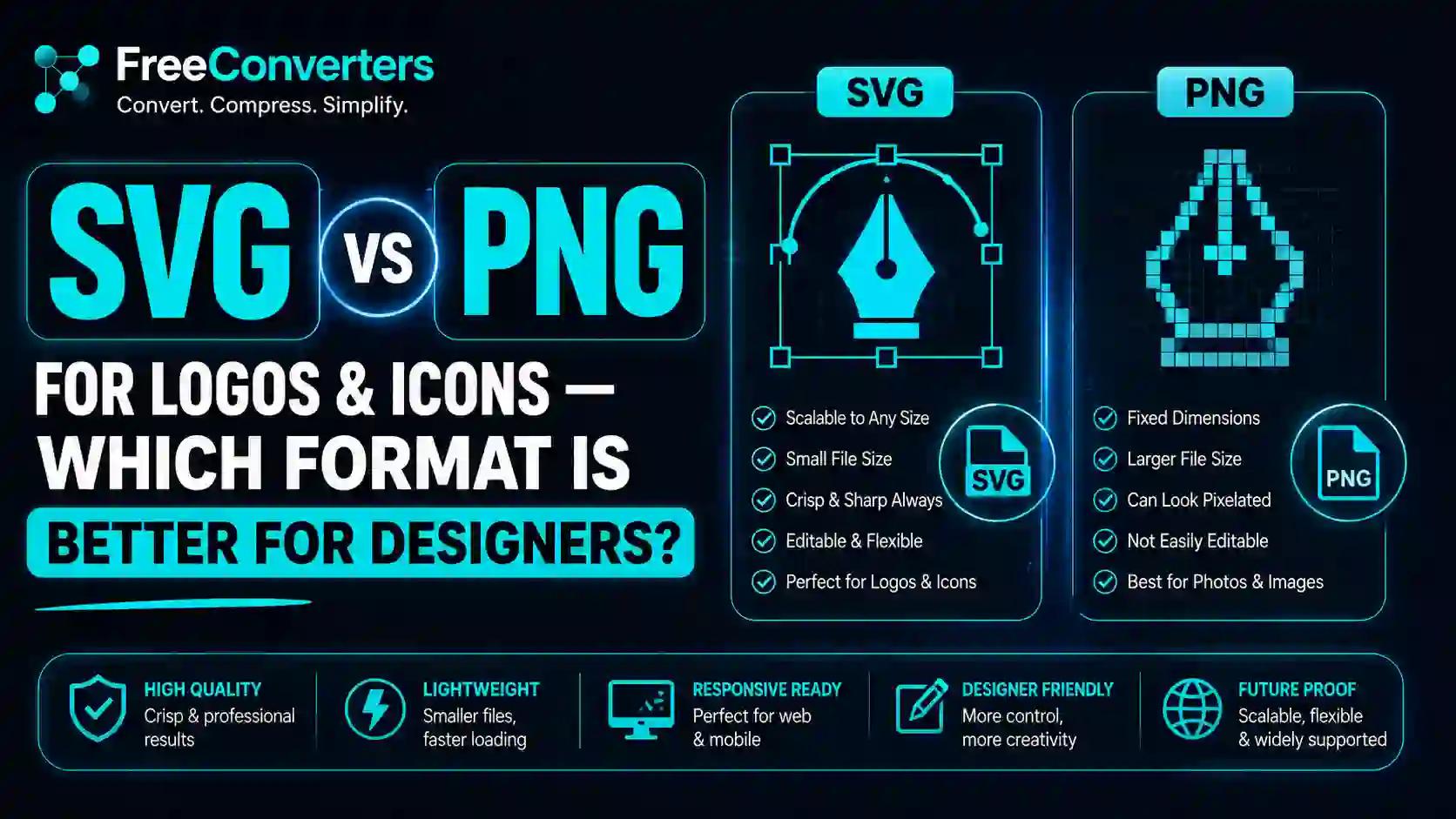
SVG vs PNG for Logos and Icons — Which Format is Better for Designers?
If you have ever exported a logo and wondered whether to save it as an SVG or a PNG, you are not alone. This is one of the most common questions designers, developers, and business owners ask — and for good reason. Choosing the wrong format can affect how your logo looks on different screens, how fast your website loads, and even how Google indexes your content. In this guide, we break down everything you need to know about SVG vs PNG so you can make the right call every single time.
What Is SVG? (Scalable Vector Graphics Explained)
SVG stands for Scalable Vector Graphics. It is an XML-based image format defined by the W3C standard, which means it is essentially code — not pixels. Instead of storing colour information for every individual pixel, an SVG file stores mathematical instructions that describe shapes, paths, curves, and colours.
The result? An SVG file can be scaled to any size — from a 16px favicon to a 10-metre billboard — without losing a single bit of quality. No blurring, no pixelation, no compromise.
SVG files are natively supported in HTML5, which means you can embed them directly into your webpage code as inline SVG. They can also be styled with CSS, manipulated with JavaScript, and even animated. Tools like Adobe Illustrator, Figma, Sketch, and the free open-source editor Inkscape all export SVG files with ease.
Key characteristics of the SVG format:
- XML-based, path-based graphics
- Resolution-independent and infinitely scalable
- Editable in code editors and design tools
- Supports CSS styling, JavaScript manipulation, and SVG animation
- Includes SVG ARIA attributes for accessibility
- Compatible with all modern browsers
What Is PNG? (Portable Network Graphics Explained)
PNG stands for Portable Network Graphics. It is a raster image format, which means it stores image data as a grid of pixels. Every single pixel holds colour information, and when you zoom in too far, those pixels become visible — creating that blurry, blocky effect we all recognise.
PNG is a lossless image format, meaning no data is lost when the file is saved or compressed. It also supports alpha channel transparency, which makes it the go-to format for images that need a transparent background — logos placed on coloured website headers, for example.
Unlike JPEG, PNG uses a lossless compression algorithm that preserves image quality perfectly. That is why it became the standard for logos, icons, and any graphic that needs crisp edges and clean colours.
Key characteristics of the PNG file format:
- Pixel-based, raster image format
- Lossless image compression — no quality degradation
- Full alpha channel transparency support
- Wide compatibility across all platforms, apps, and email clients
- Available in PNG-8 and PNG-24 variations
- Not scalable — quality degrades at larger sizes
The Main Difference Between SVG and PNG
The main difference between SVG and PNG is how they store image data. SVG is a vector format built from mathematical paths, while PNG is a raster format built from pixels. This single distinction is responsible for every practical difference between the two formats — scalability, file size, editability, and performance.
Think of it this way. An SVG is like a recipe — give it to any chef (screen, browser, printer) and they will cook the same dish perfectly regardless of how many people they are serving. A PNG is like a photograph of that dish — beautiful at the size it was taken, but blurry and degraded if you try to blow it up.
SVG vs PNG for Logos — Which Should You Use?
For logos, SVG is almost always the better choice. Here is why.
A logo appears in dozens of places — your website header, your email signature, your mobile app, your social media profile, your business card, and your office signage. Every one of those placements requires a different size. With SVG, one file handles all of them flawlessly. With PNG, you need to export multiple versions at different resolutions — and even then, they may look soft on high-DPI retina displays.
SVG is better than PNG for logos because it is resolution-independent. Whether a visitor is on a 4K monitor, an iPhone 15 Pro with a super retina display, or a standard HD screen, the SVG logo renders perfectly. There is no pixelation, no blurring, and no need for @2x or @3x exports.
SVG logos also tend to have smaller file sizes for simple designs — a single-colour wordmark or a geometric logo shape in SVG can be just a few kilobytes. This directly benefits your Core Web Vitals scores and Google PageSpeed performance, both of which are ranking factors.
Use SVG for your logo when:
- Your logo is geometric, text-based, or uses flat colours
- It needs to appear at multiple sizes across different platforms
- You want the smallest possible file size for a crisp result
- You are building a responsive website and need retina-ready graphics
- You want to animate or style your logo with CSS
If you already have a PNG logo and need to convert it, you can use the free PNG to SVG Converter at Free Convertors— it is fast, accurate, and requires no software installation.
SVG vs PNG for Icons — Which Wins?
For web icons and UI design, SVG is the clear winner. Icons by nature are small, simple shapes — exactly the type of graphic that SVG handles best.
Why do designers prefer SVG for icons? Because SVG icons can be styled with CSS directly. You can change their colour, size, stroke width, and even hover state without creating a new image. You can bundle them into SVG sprite sheets for better performance. And they look razor-sharp on every screen, from the smallest smartwatch to the largest 5K display.
PNG icons work fine for one-off use cases — especially if the icon is complex, contains gradients, or needs to look exactly the same across every environment without any CSS interference. But for scalable, themeable, accessible icon systems in web and app design, SVG wins every time.
SVG also supports SVG ARIA attributes, which means screen readers can interpret and announce icon meaning — a critical advantage for web accessibility compliance.
SVG vs PNG: Head-to-Head Comparison Table
Feature | SVG | PNG
Image Type | Vector (path-based) | Raster (pixel-based)
Scalability | Infinite — no quality loss | Fixed resolution — degrades when enlarged
Transparency | Yes | Yes (alpha channel)
File Size | Small for simple graphics | Larger, especially at high resolution
Animation | Yes (CSS/SMIL) | No
CSS Styling | Yes | No
Browser Support | All modern browsers | Universal
Email Client Support | Limited | Universal
Best For | Logos, icons, UI elements | Photos, complex images, screenshots
Editability | Editable in code and design tools | Requires image editor
Print Quality | Perfect at any size | Limited by resolution
Google PageSpeed | Excellent for simple graphics | Heavier for same quality at high res
SVG vs PNG File Size — What the Numbers Say
One of the most practical considerations is file size, especially for web performance. For a simple logo or icon, an SVG file is almost always smaller than a PNG at the same visual quality.
A geometric logo saved as SVG might weigh 3–8KB. The same logo exported as a PNG at 500x500px could be 30–80KB. At 2x for retina screens, that PNG doubles again. Over a full webpage with multiple images, that difference in image file size can significantly affect your page load time — and therefore your SEO rankings.
However, for complex graphics with many details, gradients, and textures — like a photo-realistic illustration — PNG becomes more efficient. An SVG trying to represent photographic complexity would contain thousands of paths and result in a bloated file that defeats the purpose.
To compress PNG files without losing quality, you can use the free Image Compressor at Free Convertors, which supports batch compression and keeps your file sizes lean.
Is SVG Supported in All Browsers?
Yes. SVG is supported in all modern browsers including Chrome, Firefox, Safari, Edge, and Opera. Browser compatibility for SVG has been excellent since 2013. Even mobile browsers on iOS and Android render SVG perfectly.
The only real compatibility concern is older versions of Internet Explorer (IE8 and below), which are essentially extinct in today's web traffic. For any legacy fallback scenario, a simple technique is to provide a PNG fallback for older browsers using the HTML <picture> element — but for the vast majority of websites today, this is completely unnecessary.
When Should You Use PNG Over SVG?
PNG is the right choice in several specific scenarios:
1. Photographs and complex imagery — PNG handles photographic content, gradients, and detailed illustrations far better than SVG. If an image has thousands of colours and tones, PNG is the appropriate raster format.
2. Email signatures and newsletters — SVG support in email clients is notoriously inconsistent. Gmail, Outlook, and Apple Mail do not reliably render SVG. For email logos and email signature graphics, PNG is the safe and universally compatible choice.
3. Social media profile images — Most social media platforms (Instagram, Facebook, LinkedIn, Twitter/X) do not accept SVG uploads. PNG is the standard format for profile pictures, post graphics, and social media icons.
4. Screenshots and UI mockups — When capturing or presenting a screen at a fixed resolution, PNG is the natural format. There is no benefit to vector here.
5. Complex icons with many colours — If an icon contains photographic detail or dozens of colour variations, a PNG may be simpler to manage and smaller in file size than an equivalent SVG.
Can SVG Be Used for Print Design?
Absolutely. SVG is excellent for print design for the same reason it is great for web — infinite scalability. Since SVG is built on mathematical paths rather than pixels, it produces perfectly sharp output at any print resolution, from a business card to a large-format banner.
Professional print designers typically work in Adobe Illustrator, which exports native AI and EPS files that are also vector-based. SVG is the web-friendly equivalent of those formats. Many modern print workflows accept SVG directly, and any format that does not can accept a PDF exported from the SVG source without quality loss.
Is PNG or SVG better for print design? SVG wins for logos, icons, and typography. PNG is only appropriate for print if you are working with photographic or raster artwork, and even then, TIFF is often preferred at high resolutions.
How SVG Affects SEO
SVG can positively affect your SEO in several ways.
First, smaller file sizes mean faster load times. Page speed is a confirmed Google ranking factor, and replacing heavy PNG logos with lightweight SVGs can shave meaningful milliseconds off your load time — especially on mobile.
Second, SVG files are XML-based, which means search engines can read their code. You can add title tags, descriptions, and ARIA attributes directly inside an SVG file, making the content accessible and interpretable to both assistive technologies and search engine crawlers.
Third, inline SVG in HTML contributes to a cleaner, more semantic document structure — which supports better overall page crawlability.
Google recommends using next-gen image formats and optimised graphics for Core Web Vitals. SVG is ideally positioned as the format of choice for all vector content on the web.
You can also optimise your SVG files using tools like SVGO (SVG Optimiser), which strips unnecessary metadata and code from exported SVG files, often reducing file sizes by 50–80%.
Can You Convert PNG to SVG?
Yes — and this is one of the most common tasks for designers working with older brand assets.
Converting a PNG to SVG requires a process called vectorisation or tracing, which converts the pixel data in the PNG into vector paths. Tools like Adobe Illustrator's Image Trace feature, Inkscape's bitmap tracing tool, and dedicated online tools can do this automatically.
For simple logos — flat colours, clean edges, geometric shapes — auto-tracing produces excellent results. For complex photographs or detailed illustrations, manual tracing by a professional designer will always yield better output.
The easiest free option is to use the PNG to SVG Converter at Free Convertors— simply upload your PNG, and the tool converts it to a clean, scalable SVG file in seconds.
Similarly, if you need to go the other direction and export an SVG as a raster image for social media or email use, the SVG to PNG Converter at Free Convertors handles that conversion instantly and at the resolution of your choice.
Tools Designers Use to Create and Export SVG Files
The SVG ecosystem is rich with both professional and free tools:
- Adobe Illustrator — The industry standard for vector graphics. Export SVG with full control over SVG viewBox settings, xmlns namespace, and optimisation options.
- Figma — The leading collaborative design tool. Export SVG directly from any frame or component with one click.
- Sketch — Popular among macOS designers for UI and icon work. Excellent SVG export with clean, minimal code output.
- Inkscape — The best free, open-source SVG editor. Full feature set including SVG filter effects, clipping masks, and gradient support.
- Canva — Supports SVG export on paid plans. Suitable for simpler logo and icon work.
For file conversion needs — whether you are converting SVG to PNG, PNG to JPG, WebP to PNG, or any other format — Free Convertors offers a full suite of free image conversion tools you can access without creating an account or paying anything.
WebP vs SVG vs PNG — A Quick Comparison
While we are on the topic of image formats, it is worth placing SVG and PNG in the broader context of today's web image landscape:
- SVG — Best for logos, icons, and vector graphics. Scalable, CSS-styleable, animatable.
- PNG — Best for raster graphics requiring transparency. Lossless, universally supported.
- WebP — Best for photographs and complex raster images on the web. Smaller than PNG with similar quality. Convert WebP to PNG or WebP to JPG instantly at Free Convertors.
- JPEG/JPG — Best for photographs where transparency is not needed. Lossy compression. Convert JPG to PNG or PNG to JPG in seconds.
- AVIF / HEIC — Emerging next-gen formats with even better compression. HEIC to JPG conversion is available free at Free Convertors.
Frequently Asked Questions
What is the difference between SVG and PNG? SVG (Scalable Vector Graphics) is a vector image format made of mathematical paths that scales infinitely without quality loss. PNG (Portable Network Graphics) is a raster format made of pixels that degrades in quality when enlarged. SVG is better for logos and icons; PNG is better for photographs and complex raster images.
Is SVG better than PNG for logos? Yes, in most cases. SVG logos look sharp at any size, have smaller file sizes for simple designs, and perform better on high-DPI retina screens. They also load faster, which supports better SEO performance.
Does SVG support transparent backgrounds? Yes. SVG natively supports transparent backgrounds without any additional settings. PNG also supports transparency through its alpha channel. Both formats are valid choices when a transparent background image is required.
Can SVG be used in emails? Not reliably. Most major email clients including Gmail and Outlook do not render SVG correctly. For email logos and email signature graphics, PNG is the recommended format for guaranteed compatibility across all email clients.
What are the disadvantages of SVG? SVG is not suitable for photographs or highly detailed raster images. It is also not universally supported in email clients or some older content management systems. Very complex SVG files with many paths can also be larger than equivalent PNGs.
What are the disadvantages of PNG? PNG files cannot scale without losing quality. They are larger in file size than SVG for simple vector graphics and do not support animation or CSS styling. On retina screens, PNG images need to be exported at 2x or 3x resolution to look sharp, which increases file size further.
Conclusion — SVG or PNG: Make the Right Choice
The SVG vs PNG debate does not have one universal answer — but it does have clear guidelines. SVG is the best image format for scalable logos, icons, and any vector graphic that needs to look perfect at every size on every screen. PNG is the right choice for photographs, email graphics, social media images, and any situation where raster format compatibility is essential.
For most modern designers and developers, the smart workflow is to keep a master SVG file for every logo and icon, and export PNG versions as needed for specific use cases like email, social media, and legacy platforms.
The good news is that you never have to be stuck in the wrong format. Whether you need to convert SVG to PNG, PNG to SVG, or handle any other image format conversion, you can do it instantly and for free at Free Convertors. No registration, no software, no cost.
Explore all the advanced image tools available at Free Convertors — including the Image Converter, Image Compressor, PNG to JPG Converter, and more — and keep your design workflow running smoothly, whatever format you are working with.