
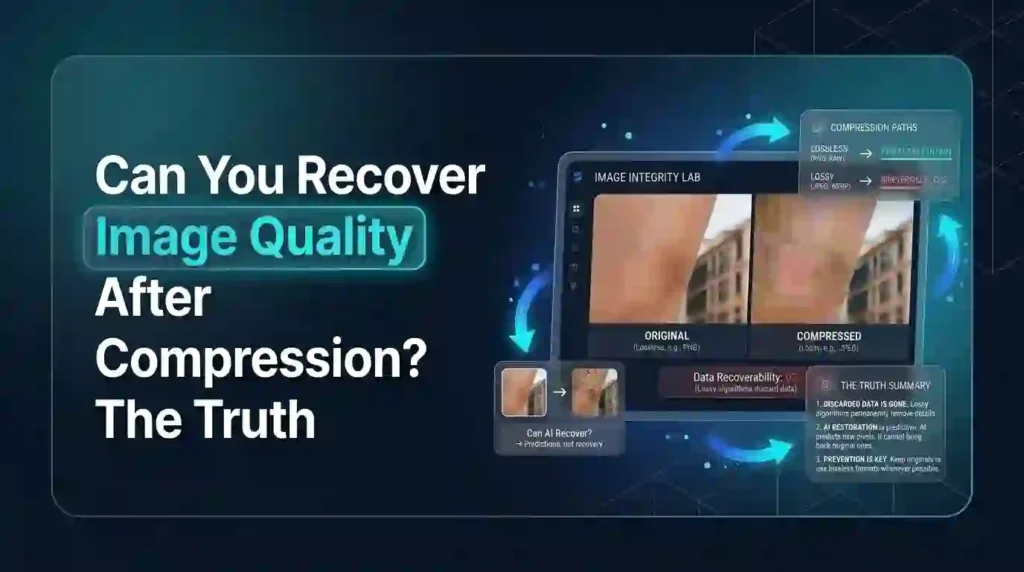
You compressed a photo to save space, shrunk an email attachment, or sped up your website — and now it looks blurry, blocky, or just… worse. Naturally, the next question is: can you get that quality back?
Here’s the honest, technical truth: No, you cannot truly recover the original image quality after lossy compression. Once pixel data is discarded during compression, it’s permanently gone — there’s no algorithm that can perfectly reconstruct information that no longer exists. What AI upscaling and enhancement tools can do is intelligently guess and generate new details that look convincing, often dramatically improving how an image appears, but this is enhancement and approximation, not true recovery.
In this guide, we’ll break down exactly why compression loss is permanent, what AI tools are actually doing when they “fix” a compressed image, and how to get the best realistic results when you’re stuck with an already-compressed file.
Why Does Compression Destroy Image Quality in the First Place?
To understand why recovery isn’t really possible, it helps to understand what compression actually does. There are two fundamentally different types of compression, and the distinction matters enormously.
Lossy vs Lossless Compression
Lossless compression (like PNG) reduces file size without discarding any actual image data. It reorganizes and encodes the information more efficiently, while preserving every original pixel value exactly. This is why PNG files retain sharp quality but stay relatively large.
Lossy compression (like standard JPEG) works differently — it identifies information the human eye is less likely to notice and simply throws it away to shrink the file size. This is a one-way process. Once that data is discarded, there’s no record of what it originally was, which is exactly why undoing JPEG compression isn’t technically possible in the true sense of the word.
How JPEG Compression Actually Works
JPEG compression uses a mathematical process called the discrete cosine transform (DCT), which breaks an image into small blocks and simplifies the color and brightness information within each one. The more aggressive the compression setting, the more information gets simplified or discarded entirely — which is exactly why you start seeing blocky JPEG compression artifacts, especially around sharp edges and fine detail, when compression is pushed too far.
This is a fundamentally different kind of image degradation than, say, a blurry photo from camera shake. Blur is a distortion of existing data, while lossy compression is a removal of data — and that distinction is the entire reason “recovery” and “enhancement” aren’t the same thing.
Can You Recover Image Quality After Compression?
The direct, honest answer: no, not in the literal sense of restoring the exact original data. Once lossy compression discards pixel information, that information is permanently gone — there is no reverse-engineering process that can perfectly reconstruct what was discarded, because the discarded data simply doesn’t exist anymore.
This is different from, say, deleting a file, where the data might still exist on a disk until overwritten. Compressed data isn’t hidden somewhere waiting to be recovered — it was never saved in the compressed file to begin with.
What’s actually possible is enhancement through intelligent approximation — and that’s where modern AI tools come in.
What AI Upscaling and Enhancement Tools Actually Do
This is the part that trips most people up, because AI “restoration” tools genuinely can make a compressed image look dramatically better. But it’s important to understand the mechanism honestly.
AI Doesn’t Recover — It Generates
Modern AI upscaling tools, often built on neural networks and models like Real-ESRGAN or commercial tools like Topaz Gigapixel AI, work by analyzing patterns from millions of training images. When you feed a compressed, low-quality image into one of these tools, the AI doesn’t search for the “real” missing pixels — it generates entirely new pixel data based on statistical patterns it learned during training, essentially making an educated guess about what detail probably belonged there.
This is why AI-enhanced images can look impressively sharp and detailed, while also occasionally producing details that weren’t actually in the original photo at all — a phenomenon sometimes called “hallucination” in AI imaging circles. The tool isn’t lying to you exactly; it’s doing exactly what it’s designed to do: create a plausible, higher-quality-looking version based on pattern recognition, not factual reconstruction.
Super-Resolution Technology Explained
Super-resolution (SR) is the specific branch of AI technology responsible for most of this “upscaling” work. Using techniques like Generative Adversarial Networks (GANs), these systems are trained by comparing millions of high- and low-resolution image pairs, learning to predict which fine details are statistically likely to exist based on the lower-resolution input. It’s genuinely impressive technology — but it’s prediction, not archaeology.
Comparison Table: Methods to Improve a Compressed Image
| Method | What It Actually Does | Can It Restore Original Quality? | Best Use Case |
|---|---|---|---|
| AI Upscaling (Real-ESRGAN, Topaz) | Generates new plausible details using trained neural networks | No — approximates, doesn’t recover | Improving visual appearance for casual/social use |
| Traditional Upscaling (Bicubic) | Mathematically interpolates between existing pixels | No — just smooths, adds no real detail | Minor resizing without adding artifacts |
| Sharpening Tools | Increases edge contrast to appear sharper | No — enhances perceived clarity only | Making an already-decent image pop slightly more |
| Noise Reduction | Smooths out compression artifacts and blockiness | No — hides artifacts, doesn’t recover data | Reducing visible JPEG blockiness |
| Re-compressing at Higher Quality | Saves the already-degraded image at higher settings | No — cannot add back what’s already lost | Avoiding further quality loss going forward |
Does Re-Saving a Compressed Image Make It Worse?
Yes, and this is a critical detail people often miss: every time you save a JPEG using lossy compression, you risk additional data loss — a phenomenon known as generational loss. If you open a compressed JPEG, make edits, and save it again as a JPEG, you’re compressing an already-compressed image, compounding the quality degradation each time. This is why professionals recommend working from the original uncompressed file whenever possible and exporting only to compressed formats as the final step.
Bicubic vs AI Interpolation: What’s the Real Difference?
Traditional upscaling methods like bicubic interpolation work by mathematically averaging nearby pixel values to fill in new pixels when enlarging an image. This produces smoother results than simple pixel duplication, but it doesn’t add any real detail — it just blends what’s already there, which is why traditionally upscaled images often look soft or slightly blurry rather than genuinely sharper.
AI interpolation, by contrast, uses trained pattern recognition to generate texture, edges, and detail that look plausible based on similar images the model has seen before. It’s a meaningfully more sophisticated process — but as covered above, it’s generation, not true recovery.
How to Get the Best Realistic Results With a Compressed Image
Since true recovery isn’t possible, here’s the practical, honest approach to making a compressed image look as good as it realistically can:
- Start with the least-compressed version available. If you have access to any earlier, higher-quality version of the file, always use that instead of the most compressed copy.
- Use AI upscaling tools for casual, non-critical use. For social media posts, minor prints, or general visual improvement, AI enhancement can produce genuinely good-looking results.
- Avoid re-compressing repeatedly. Every additional lossy save compounds quality loss — export to a lossless format like PNG if you need to make further edits.
- Set realistic expectations for print use. Heavily compressed images pushed through AI upscaling for large-format printing often reveal artifacts or unnatural texture up close, even if they look fine on a screen.
- Prevent the problem from going forward. For images you plan to reuse or edit later, always keep an uncompressed or lightly compressed master copy, and only compress final export versions.
If you’re compressing images for web use going forward and want to avoid this problem entirely, our free Image Compressor lets you control compression levels precisely, so you can find the sweet spot between file size and visible quality before you ever lose detail you’ll wish you’d kept. Our guide on compressing images for speed, storage, and SEO also covers how to compress the first time smartly, avoiding the need for “recovery” altogether.
PNG vs JPEG: Choosing the Right Format to Avoid This Problem
One of the best ways to sidestep regret over quality loss entirely is to choose the right format before compression happens. PNG uses lossless compression, making it ideal for images you might need to edit further, such as logos, graphics, or screenshots with text. JPEG’s lossy compression makes it better suited for final photographic exports, where a quality trade-off for a smaller file size is acceptable.
If you’re unsure which format fits your specific use case, our detailed comparison of PNG vs JPG vs WebP breaks down exactly when to use each format to avoid unnecessary quality loss.
Is AI Image Enhancement the Same as Quality Recovery?
No, and this distinction matters for setting realistic expectations. Quality recovery would mean retrieving the exact original data that was lost, which isn’t technically possible with lossy compression. AI image enhancement means generating new, plausible-looking detail that improves visual appearance without being factually accurate to the original image. Both can result in an image that “looks better,” but only one tells you the truth about what was actually there.
For most everyday purposes — improving a photo for social media, sharpening an old family picture, or making a slightly blurry image presentable — this distinction doesn’t matter much practically. But for professional, forensic, or archival purposes where accuracy matters, understanding this difference is essential.
Why Trust Matters When Choosing Image Tools
There’s no shortage of tools online claiming to “restore” or “recover” image quality, and honestly, some marketing language overstates what’s technically happening under the hood. At Free Convertors, we believe in being straightforward about what our tools actually do — compression tools compress efficiently and give you control over quality tradeoffs, but we won’t pretend any tool can magically undo data that’s already gone.
If you’re working with images regularly, our full collection of free image tools can help you compress, convert, and manage image quality proactively — which is always more effective than trying to fix quality loss after the fact.
FAQs About Recovering Image Quality After Compression
Can you recover image quality after compression? No, not in the literal sense. Lossy compression permanently discards pixel data, and there’s no algorithm that can perfectly reconstruct information that no longer exists. AI tools can generate new, plausible-looking detail, but this is an enhancement, not a true recovery.
Is it possible to undo JPEG compression? No. JPEG’s lossy compression process is a one-way transformation — once information is discarded to reduce file size, that data is permanently lost. There’s no technical process that can reverse this and retrieve the original discarded information.
Can AI restore a compressed image to its original quality? Not exactly. AI upscaling tools generate new pixel data based on patterns learned from training images, producing a plausible, sharper-looking result. It’s a convincing approximation, not a factual reconstruction of the original image.
What is the difference between lossy and lossless compression? Lossless compression reduces file size while preserving every original pixel value exactly, like PNG. Lossy compression, like standard JPEG, permanently discards some image data to achieve smaller file sizes, and the data cannot be recovered afterward.
Why does an image lose quality after compression? Lossy compression algorithms identify visual information the human eye is less likely to notice and discard it to reduce file size. The more aggressive the compression, the more data is removed, leading to visible blockiness and blur.
Does re-saving a compressed image make it worse? Yes. Each time you save a JPEG using lossy compression, additional data can be discarded, a process called generational loss. Repeatedly opening, editing, and re-saving a compressed JPEG compounds quality degradation over time.
Final Thoughts
The truth about recovering image quality after compression isn’t as satisfying as marketing claims might suggest — once lossy compression discards pixel data, it’s genuinely gone for good. What AI upscaling and enhancement tools offer instead is a smart, often impressive approximation: generating new detail that looks convincing without being factually accurate to what was originally there.
For most everyday needs, that distinction won’t matter much — an AI-enhanced photo will look great on social media or in a casual print. But understanding the real mechanics helps you set realistic expectations and, more importantly, encourages better habits going forward: keeping uncompressed masters, choosing the right format upfront, and compressing thoughtfully rather than aggressively.
Want to avoid quality-loss regret in the first place? Try our free Image Compressor to control your compression settings precisely, and explore our full range of image tools to compress, convert, and manage your images the smart way from the start.
For deeper technical reference on compression standards, the official JPEG standard documentation from the Joint Photographic Experts Group provides authoritative details on how lossy compression works.
Pingback: How Photographers Deliver Files to Clients (Free Tools)