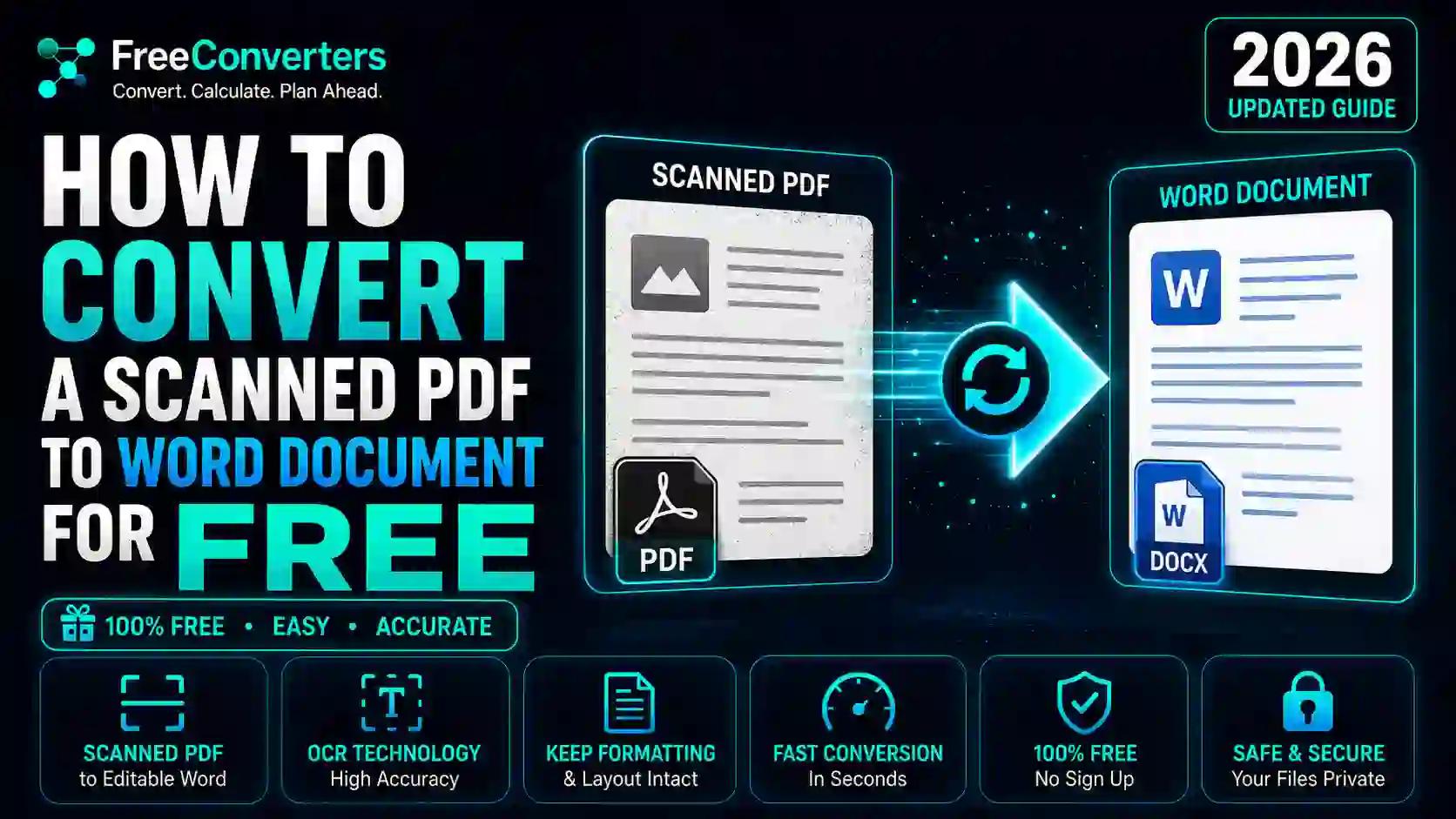
How to Convert a Scanned PDF to a Word Document for Free
If you have ever tried to edit a scanned PDF in Microsoft Word and ended up with a page full of frozen text you can't touch, you already know the problem. A scanned PDF is really just a picture of a page, not real text, so your computer has no idea what the words actually say. The good news is that converting a scanned PDF to an editable Word document is completely doable without spending a cent, once you understand how OCR (Optical Character Recognition) technology works. In this guide, you will learn exactly how to convert a scanned PDF to Word for free, which tools actually work, and how to avoid the common mistakes that ruin formatting.
What Is a Scanned PDF (And Why Can't You Edit It Directly)
A scanned PDF is created when a physical document is scanned or photographed and saved as a PDF file. Unlike a regular PDF that is generated from a Word or Google Docs file, a scanned PDF contains no actual text data. Instead, it is essentially a digital photograph of the page, saved as a PDF.
This is why you cannot select, copy, or edit the text in a scanned PDF the normal way. Your PDF reader sees pixels, not letters. To make that content editable, the file needs to go through Optical Character Recognition, a technology that "reads" the shapes on the page and converts them into actual, selectable text characters.
Once OCR has processed the image-based PDF, the extracted text can be exported into a Word document (.docx), where you can edit, reformat, or reuse the content just like any other file.
Why Converting Scanned PDFs to Word Matters
Document digitization has become a daily necessity for students, HR professionals, freelancers, and small business owners alike. Here's why this skill and these tools matter so much in 2026:
- Editing convenience: You can fix typos, update outdated information, or repurpose old scanned contracts, notes, or forms.
- Time savings: Manually retyping a multi-page scanned document can take hours; OCRing a PDF to Word takes seconds to minutes.
- Accessibility: Editable, searchable documents are easier to use with screen readers and accessibility tools.
- Searchability: A searchable PDF or Word file lets you use Ctrl+F to instantly find information, rather than scanning every page manually.
- Professional use cases: HR teams often need to convert scanned CVs and resumes into editable Word files for formatting or database entry — a task covered in more detail in our guide on how HR professionals convert CVs and resumes from PDF.
Understanding how PDF files are created in the first place also helps explain why scanned PDFs behave so differently from regular ones. If you're curious about the technical side, our article on how PDF files are created breaks this down in plain language.
Key Tools and Methods to Convert Scanned PDF to Word for Free
There isn't just one way to do this. Depending on your device, internet access, and formatting needs, you can choose from several free methods.
Free Online OCR Converters
Dedicated online tools remain the fastest and most beginner-friendly option. Our own PDF to Word Converter is built specifically to handle scanned PDF-to-editable Word document conversion, with built-in OCR that preserves formatting, images, and layout wherever possible — completely free, with no sign-up required.
Here's a simple step-by-step process using an online converter:
- Go to the PDF-to-Word Converter tool.
- Upload your scanned PDF file (drag and drop or browse your device).
- Let the OCR engine automatically scan and recognize the text.
- Preview the extracted content to check accuracy.
- Download your new, fully editable Word (.docx) file.
This method works on any device — Windows, Mac, iPhone, or Android — since it runs directly in your browser.
- Google Docs OCR Method
Many people don't realize that Google Docs has a hidden, completely free OCR feature. Here's how to convert a scanned PDF to Word using Google Docs:
- Upload the scanned PDF to Google Drive.
- Right-click the file and select "Open with" then "Google Docs."
- Google Drive automatically runs OCR and creates an editable Google Doc below an image of the original page.
- Copy the recognized text, or download the file directly as a Word document (.docx) using File, then Download.
This method is free and requires no extra software, though OCR accuracy can vary with low-quality scans or unusual fonts.
- Microsoft Word's Built-In OCR Feature
If you already have Microsoft 365, Word has limited built-in OCR capability, particularly when opening PDFs directly. Word will attempt to convert PDF content into an editable format automatically, though results are typically better for text-based PDFs than heavily image-based scans.
- Adobe Acrobat Online (Free Trial Option)
Adobe Acrobat's online tools offer OCR-based PDF to Word conversion, but the fully free tier usually comes with limitations like page counts or watermarks, unlike fully free tools such as our own converter.
Comparison: Free Scanned PDF to Word Tools
Tool | Free Limit | OCR Accuracy | Output Format
FreeConverters PDF to Word | Unlimited, no sign-up | High | .docx
Google Docs OCR | Free with Google account | Moderate to High | .docx (via download)
Adobe Acrobat Online | Limited free trial | High | .docx
Microsoft Word (built-in) | Free with Microsoft 365 | Moderate | .docx
Why Choose Free Converters Instead of Paid Software
A common question people ask is whether free tools are actually reliable, or whether it's worth paying for premium OCR software. In most everyday cases — converting a scanned resume, a scanned contract, or old scanned notes — free tools like Free Convertors offer more than enough accuracy without any subscription cost.
Choosing Free Convertors for your scanned PDF to Word conversion means:
- No installation or downloads required
- No watermark on your converted files
- No email sign-up needed
- Works across devices and operating systems
- Formatting preservation for headings, bullet points, and basic tables
If you're unsure whether free online tools are the right fit for your workflow compared to desktop software, our detailed comparison of free online tools versus paid software walks through the tradeoffs in depth. We also have a broader explainer on browser-based tools versus desktop software if you want to understand the bigger picture of cloud-based converters versus installed programs.
How to Get the Best OCR Accuracy (Practical Tips)
OCR technology has improved dramatically, but results still depend heavily on the quality of your original scan. A few practical tips:
- Scan at 300 DPI or higher for the clearest text recognition.
- Avoid skewed or angled scans; straighten the page before uploading.
- Use good lighting and avoid shadows if photographing a document with your phone.
- Black-and-white or grayscale scans of typed text usually convert more accurately than colored or handwritten pages.
- For handwritten documents, expect lower accuracy, since handwriting recognition is still less reliable than typed text recognition.
If your scanned file is also large, you may want to compress it first. Our guide on how to reduce PDF file size for free can help speed up uploads and conversions.
Real-World Examples of Scanned PDF to Word Conversion
- A university student scans handwritten lecture notes and uses OCR to create an editable, searchable Word document for easier studying.
- An HR manager receives a scanned resume PDF from a job applicant and converts it to Word to reformat it for their applicant tracking system.
- A small business owner scans old paper invoices and converts them to Word documents for digital record-keeping and easier searching.
- A freelancer converts a scanned client contract into an editable Word file to make quick amendments before sending it back for signature.
These everyday situations show why document digitization has become a practical skill rather than a niche IT task.
The Future of PDF to Word Conversion and OCR Technology
OCR and document conversion tools are evolving quickly, with AI-powered recognition improving accuracy for messy scans, multiple languages, and even handwriting. According to background research from Google's own AI and OCR documentation, machine learning models can increasingly recognize text across languages and in complex layouts with far greater precision than older rule-based OCR systems. This means free tools will likely continue closing the accuracy gap with expensive enterprise software over the next few years.
As remote work, digital HR processes, and paperless offices continue to grow, the demand for reliable, free conversion tools is only expected to increase. Learning how to use these tools now — and understanding their limitations — puts you ahead of the curve.
If you want to explore more free utilities beyond PDF conversion, our full toolkit is available on the Tools page, including image converters, compressors, and format-specific tools for nearly every file type.
Frequently Asked Questions
How do I convert a scanned PDF to Word for free? Upload your scanned PDF to a free OCR-based tool like our PDF to Word Converter, let it recognize the text automatically, then download the result as an editable .docx file.
Can you convert a scanned PDF to an editable Word document? Yes. Using OCR technology, the image-based text in a scanned PDF can be recognized and converted into fully editable Word content, including paragraphs and basic formatting.
Does Google Docs convert scanned PDFs to Word? Yes. Google Drive can open a scanned PDF with Google Docs, automatically applying OCR, and you can then download the result as a Word document.
Is it safe to use free online PDF-to-Word converters? Reputable free converters process files securely and typically delete uploads after conversion. Always check a tool's privacy practices, and avoid uploading highly sensitive documents to unfamiliar sites. Our guide on online tools safety covers this in more detail.
Why does my converted Word document have formatting errors? Formatting issues usually occur when the original scan is low-quality, skewed, or contains unusual fonts. Improving scan quality before conversion significantly reduces errors.
Can I convert a scanned PDF to Word without an internet connection? Most free OCR tools require internet access since processing happens in the cloud. However, some desktop software offers offline OCR conversion, typically as a paid feature.
Conclusion: Start Converting Your Scanned PDFs Today
Converting a scanned PDF to Word no longer needs to be complicated, expensive, or time-consuming. Whether you use a dedicated free tool, Google Docs, or Microsoft Word's built-in OCR, the key is choosing a method that matches your document type and formatting needs.
For the fastest, watermark-free, and completely free experience, try our PDF to Word Converter today and turn your scanned documents into editable Word files in seconds. Explore Advanced Tools to discover more free utilities that simplify your everyday document and file conversion tasks.