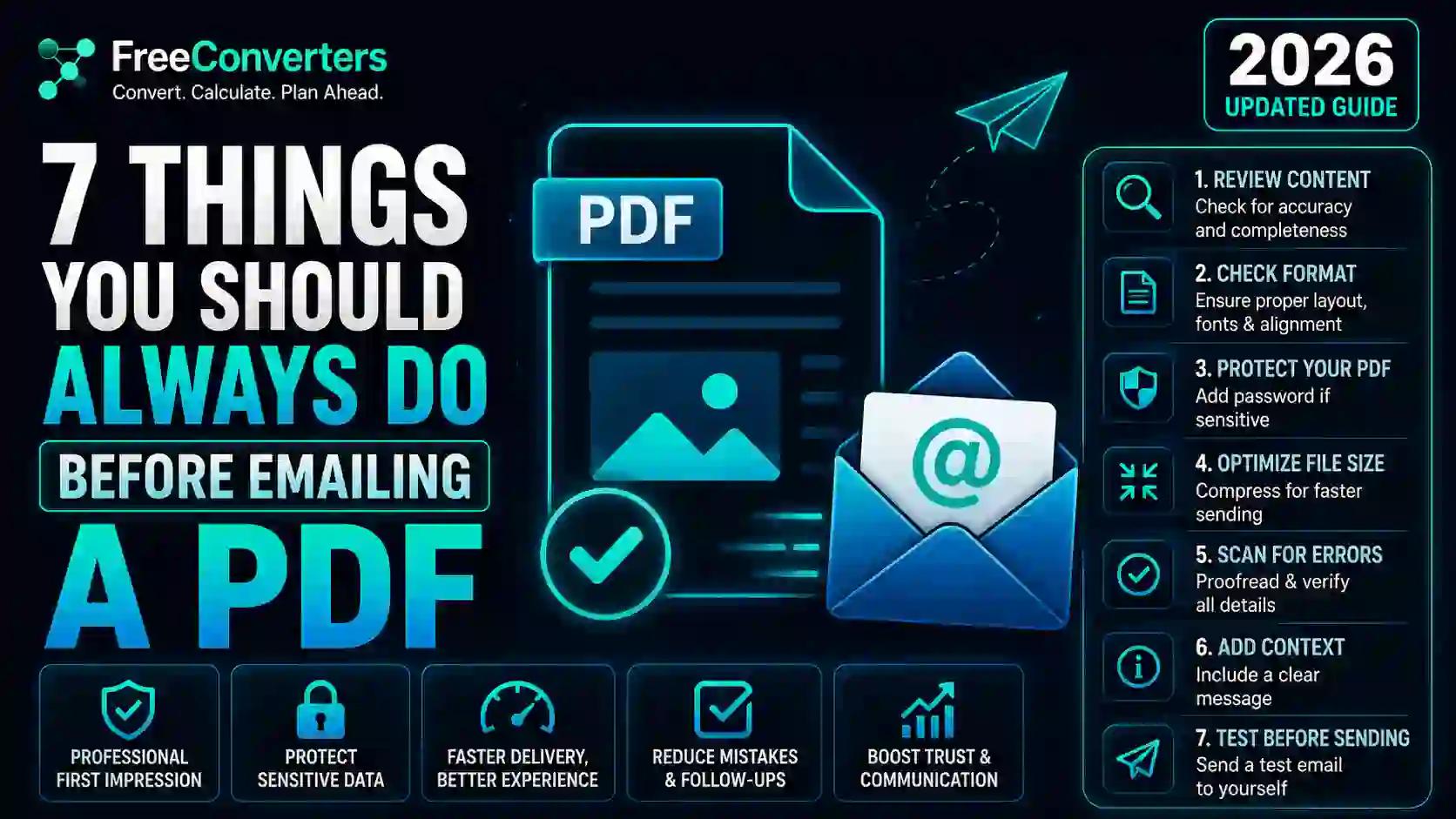
7 Things You Should Always Do Before Emailing a PDF
Sending a PDF feels like a simple task — attach, write a quick line, hit send. But anyone who has ever emailed a bloated file that bounced back, shared a document with hidden personal data, or sent a PDF that looked broken on the recipient's screen knows it's rarely that simple. A few small oversights can make you look careless, even when the content inside the PDF is perfect.
The good news is that avoiding these mistakes takes only a few minutes. Before you click send on your next PDF, run through these seven essential checks. They'll help your document arrive looking professional, open correctly on any device, and avoid landing in a spam folder or bouncing due to size limits.
1. Check and Reduce the PDF File Size
Large attachments are among the most common reasons emails fail to send or are flagged as spam. Most email providers, including Gmail and Outlook, cap attachment sizes between 20MB and 25MB. If your PDF contains high-resolution images, scanned pages, or embedded fonts, it can easily exceed that limit without you realizing it.
Before attaching your file, check its size. If it's too large, compress it using a dedicated tool rather than guessing. You can use a free PDF compressor to shrink the file size while keeping the text and images sharp enough for professional use. This guide on how to reduce PDF file size for free walks through several practical methods to give you more control over the compression level.
If your PDF was originally built from images, it helps to know how to compressimages for email before they're converted, since smaller source images mean a smaller final PDF.
2. Remove Hidden Metadata and Personal Information
Every PDF carries invisible data in the background — author name, company name, software used, edit history, and sometimes even file paths from your computer. This is called metadata, and most people never think to check it.
This matters more than it seems. If you've ever edited a contract template originally created by someone else, your PDF might still list their name as the "author." Worse, metadata can sometimes reveal internal file structures or previous draft comments that were never meant to be shared externally.
Before sending, open your PDF's properties and remove unnecessary metadata. If your document contains sensitive information such as account numbers, addresses, or confidential notes, redact it properly rather than just covering it with a black box, since text beneath a visual redaction can still be copied.
3. Proofread and Check Formatting Across Devices
A PDF that looks perfect on your laptop might display differently on someone else's phone, tablet, or an older version of software. Fonts can substitute themselves, images can shift, and page breaks can land in awkward places.
Before emailing, open the PDF on at least one other device or app to confirm it renders correctly. Check that:
- All text is fully visible and not cut off at page edges
- Images and tables haven't shifted or overlapped
- Hyperlinks inside the document actually work
- Page numbers and headers are consistent throughout
It's also worth giving the document one final proofread. Spelling errors or formatting inconsistencies are far more noticeable once they're locked into a PDF, since the recipient can't quickly fix them themselves. If your document started life as a Word file, double-check it after conversion using a tool likeWord to PDF and PDF to Word, since formatting issues most often appear right after conversion.
4. Password-Protect Sensitive PDFs
If your PDF contains financial details, legal terms, medical records, HR documents, or any confidential information, encrypting it with a password adds a meaningful layer of protection. Email isn't a fully secure channel by default, and attachments can occasionally end up forwarded, archived, or accessed by the wrong person.
Most PDF tools, including Adobe Acrobat and many free online converters, allow you to set a password directly when exporting or editing the file. A simple best practice is to send the password separately, such as via text message or in a separate email thread, rather than in the same email as the attachment.
This step is especially relevant for HR teams and recruiters. If you regularly handle applicant data, this guide on how HR professionals convert CVs and resumes to PDF covers both formatting and privacy considerations worth following.
5. Rename the File Clearly and Professionally
"Scan001.pdf" or "Document_final_v3_USE THIS ONE.pdf" might make sense to you in the moment, but it tells the recipient nothing and looks unprofessional. A clear, descriptive file name helps your document get found later, whether it's in a downloads folder, a shared drive, or an email search months from now.
A simple naming structure works well:
CompanyName_DocumentType_Date.pdf
For example: Smith_Consulting_Invoice_June2026.pdf
This single habit makes a noticeable difference in how organized and credible your communication appears, especially in business or client-facing emails where dozens of attachments may be exchanged over time.
6. Decide Between an Attachment and a Cloud Link
Not every PDF needs to be sent as a direct attachment. If the file is large, needs to be updated later, or is being shared with multiple people who might need the newest version, a cloud storage link (Google Drive, Dropbox, or similar) is often the better choice.
Attachments are best for:
- Final, unchanging documents like signed contracts or invoices
- Files that need to be saved offline immediately
- Situations where the recipient's email system can't access external links
Cloud links work better for:
- Large files that exceed attachment limits
- Documents you may need to update after sending
- Collaborative reviews where multiple people need access
If you frequently combine scanned pages or multiple images into one PDF before sharing, a tool to merge multiple images to PDF for free can save you a step, especially when preparing receipts, ID copies, or multi-page scans.
7. Write a Clear Subject Line and Short Context Message
The PDF itself might be flawless, but if your email subject line is vague or missing entirely, your message can get buried, ignored, or treated as spam. A subject line should tell the recipient exactly what's inside and why it matters.
Instead of "Document," try something like "Invoice #4521 – Due July 15" or "Signed Contract Attached – Please Review by Friday." Pair that with a short two- or three-sentence message in the email body explaining what the attachment is, what action (if any) is needed, and by when. This small bit of context saves the recipient time and reduces the likelihood of follow-up emails asking, "What is this for?"
Why These Steps Matter More in 2026
Email remains one of the most widely used methods for sharing official documents, even as more teams shift toward cloud collaboration tools. According to Google Workspace documentation, attachment size limits and security filters have only become stricter over time as spam and phishing attempts increase. That means poorly optimized PDFs are more likely than ever to get flagged, delayed, or rejected outright.
Taking a few extra minutes before sending isn't just about etiquette anymore. It directly affects whether your document gets delivered, opened, and trusted.
A Quick Pre-Send Checklist
Before you hit send on your next PDF, run through this list:
- Is the file size small enough to send without bouncing?
- Have you removed unnecessary metadata and personal information?
- Does the formatting look correct across devices?
- Does the document need a password if it contains sensitive data?
- Is the file named clearly and professionally?
- Should this be an attachment or a cloud link instead?
- Does your subject line and email body explain the attachment clearly?
If you can check off all seven, your PDF is ready to go.
Frequently Asked Questions
Why should I compress a PDF before emailing it? Compressing a PDF reduces the chance it will be rejected due to attachment size limits and makes it faster for the recipient to download, especially on mobile connections.
How do I password-protect a PDF before sending? Most PDF editors, including free online tools, let you add a password directly when saving or exporting the file. Send the password through a separate message rather than the same email.
What is the maximum PDF size for email attachments? Most providers, including Gmail and Outlook, allow attachments of around 20–25 MB, though this can vary by organization and email client.
Should I send a PDF as an attachment or a cloud link? Use an attachment for final, unchanging files like invoices or signed contracts. Use a cloud link for large files or documents that may need future updates.
How do I remove metadata from a PDF? Open the document properties in your PDF editor and clear fields like author name, company, and software details before exporting the final version.
Is it safe to email an unprotected PDF? For non-sensitive documents, it's generally fine. For anything containing financial, legal, medical, or personal data, password protection is strongly recommended.
Final Thoughts
A polished PDF says more about you than you might think. It signals attention to detail, respect for the recipient's time, and an understanding of basic digital etiquette. None of these seven steps takes more than a few minutes, but together they prevent the most common and most avoidable email mistakes.
If you regularly send PDFs for work, client communication, or personal use, it's worth bookmarking a few reliable tools so this process becomes second nature rather than an afterthought. You can explore more free, fast tools for everyday document and file tasks at Free Converters' tools page, including converters, compressors, and format checkers built for exactly these situations.