
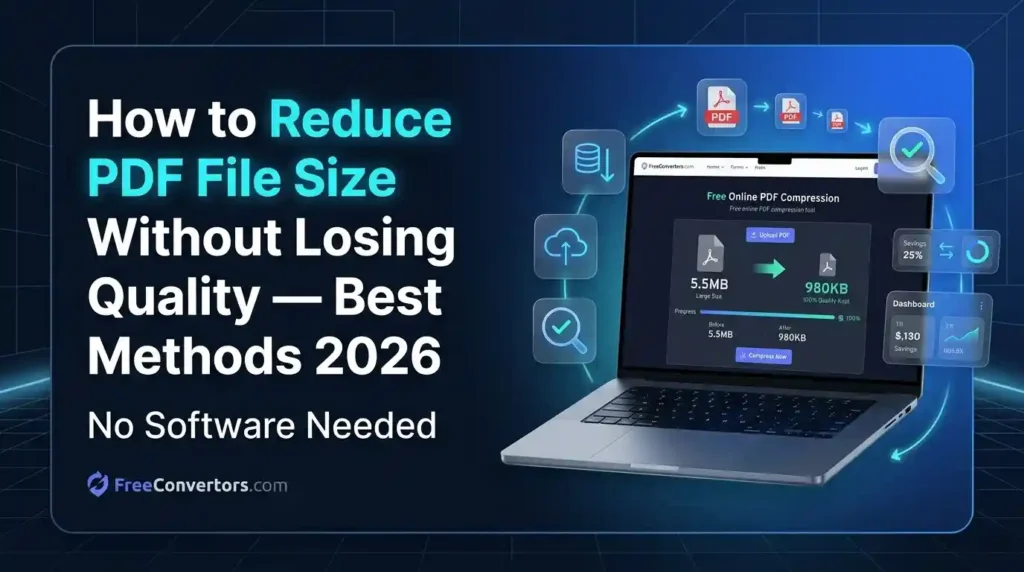
You have a PDF ready to send, but it is too large to email. Sound familiar? Whether it is a resume, a scanned document, a business report, or a university assignment, large PDF files cause real problems — upload limits, slow sharing, and storage headaches.
The good news? You can reduce PDF file size without losing quality — and do it completely free in 2026.
In this guide, you will learn the best free PDF compression methods, tools, and step-by-step techniques that work on Windows, Mac, iPhone, Android, and directly in your browser. No expensive software. No watermarks. Just results.
Let us get into it.
What Is PDF Compression — And How Does It Work?
PDF compression is the process of reducing the file size of a PDF document by removing unnecessary data, compressing embedded images, stripping metadata, and optimizing internal objects — all without visibly damaging the content.
Think of it like packing a suitcase more efficiently. You are not removing your clothes — you are just folding them better.
Lossless vs Lossy PDF Compression
There are two types of PDF compression you should know about:
Lossless compression removes hidden data like duplicate font embeddings, unused metadata, and redundant objects. The visual quality stays 100% identical. This is ideal for text-heavy documents.
Lossy compression reduces DPI (dots per inch) in embedded images. The file shrinks more dramatically, but images may look slightly softer at very high compression ratios. For most uses — emails, uploads, sharing — the difference is invisible.
Most free PDF compressor tools use a combination of both to give you the best balance of size reduction and quality retention.
Why Is My PDF File So Large?
Before you compress, it helps to understand what is making your PDF heavy in the first place.
Common causes of large PDF file sizes include:
- High-resolution images embedded inside the PDF (the biggest culprit)
- Scanned documents saved without optimization — scanned pages are essentially images
- Embedded fonts that include entire font libraries instead of just the characters used
- Metadata and hidden layers added by design software like Adobe InDesign or Canva
- Multiple versions saved within one file during editing
- Uncompressed vector graphics or transparencies
Once you know the cause, you can pick the right compression method.
Best Free Methods to Reduce PDF File Size Without Losing Quality in 2026
Method 1 — Use a Free Online PDF Compressor (No Software Needed)
This is the fastest and most accessible method for most people. Free online PDF compressor tools work directly in your browser — no installation, no sign-up required in most cases.
Top free online PDF compressor tools in 2026:
Smallpdf (smallpdf.com) — One of the most popular PDF size reducer tools globally. Offers basic compression for free. Clean interface, works on any browser.
ILovePDF (ilovepdf.com) — Excellent free PDF compressor with no watermark on compressed files. Supports batch compression, which saves time when handling multiple files.
PDF24 (pdf24.org) — Completely free, no file size limit, no sign-up. One of the best free PDF compressor tools with no restrictions in 2026. Works offline via its desktop app too.
Sejda PDF (sejda.com) — Lets you choose your compression level (screen, ebook, printer, prepress). Great for users who want control over quality settings.
PDF2Go (pdf2go.com) — Good for compressing PDFs while keeping image quality. Supports files up to 50MB on the free plan.
How to compress a PDF online (step by step):
- Go to your chosen free PDF compressor tool
- Click “Upload” or drag and drop your PDF file
- Select your compression level (low, medium, high — or choose a target size)
- Click “Compress PDF”
- Download the compressed file
Most tools complete this in under 30 seconds. You can compress a PDF to under 1MB, 200KB, or even 100KB depending on the original content.
You can also use the free PDF compressor at Free Convertors — — which compresses your PDF files instantly in your browser without any sign-up or watermark.
Method 2 — Compress PDF on Windows 10 and 11 (Free, No Adobe)
You do not need Adobe Acrobat to reduce PDF file size on Windows. Here are two easy methods:
Using Microsoft Word (Free):
- Open the PDF in Microsoft Word (it will convert automatically)
- Click File → Save As → Choose PDF
- Click “More options” and select “Minimum size (publishing online)” under Optimize for
- Save the file
This method works great for text-heavy PDFs and can reduce size significantly.
Using PDF24 Desktop App (Free):
PDF24 offers a completely free desktop PDF compressor for Windows — no watermark, no sign-up, no internet connection required. Download it from pdf24.org, install, and compress locally. This is ideal if you are handling sensitive documents and do not want to upload files to the cloud.
Method 3 — Compress PDF on Mac for Free
Mac users have a built-in solution that most people do not know about.
Using Preview (Built-in on Mac — Free):
- Open your PDF in Preview
- Go to File → Export as PDF
- In the Quartz Filter dropdown, select “Reduce File Size”
- Click Save
This method uses Apple’s built-in Quartz compression filter. It works well for scanned documents and image-heavy PDFs. The compression can be aggressive, so test the output quality and adjust if needed.
Using ColorSync Utility to Improve the Compression:
For more control on Mac, open ColorSync Utility, duplicate the “Reduce File Size” filter, and adjust the DPI settings. This gives you a custom compression preset that balances quality and size far better than the default.
Method 4 — Compress PDF on iPhone and Android (Free)
Need to reduce PDF size on mobile? Here are the best free options in 2026:
On iPhone (iOS):
- Use the PDF Compressor app or the ILovePDF mobile app
- Alternatively, use Safari to access any online PDF compressor — freeconvertors.com/tools/pdf-compressor/ works on mobile browsers
- The Files app on iPhone does not compress PDFs natively, so a browser-based tool is your easiest option
On Android:
- The PDF24 Android app is free and works offline
- Adobe Acrobat Reader on Android lets you compress PDFs — though some features require a subscription
- Browser-based tools like ILovePDF and PDF24 work just as well on Android Chrome
Method 5 — Compress PDF Using Google Drive (Free)
This is a clever workaround that many users do not know about:
- Upload your PDF to Google Drive
- Open it with Google Docs (right-click → Open with → Google Docs)
- Go to File → Download → PDF Document
- The downloaded file is often smaller due to Google’s internal re-rendering
Note: This method works best for text-heavy PDFs. It can slightly alter formatting on complex documents, so always review the output.
Method 6 — Use Adobe Acrobat’s Free Online Compressor
Adobe offers a free online PDF compressor at acrobat.adobe.com — no subscription needed for basic compression.
- Go to Adobe Acrobat online
- Upload your PDF
- Adobe automatically compresses it
- Download the reduced file
The free version compresses one file at a time and has a file size limit. For regular use without limits, PDF24 or ILovePDF are better free alternatives.
Method 7 — Compress PDF Using Command Line (Linux and Advanced Users)
For Linux users or developers, Ghostscript is the most powerful free PDF compression tool available.
Ghostscript command to compress PDF:
gs -sDEVICE=pdfwrite -dCompatibilityLevel=1.4 -dPDFSETTINGS=/ebook -dNOPAUSE -dQUIET -dBATCH -sOutputFile=output.pdf input.pdf
PDFSETTINGS options explained:
/screen— Lowest quality, smallest size (72 DPI images)/ebook— Good quality, moderate size (150 DPI) — best for most uses/printer— High quality, larger size (300 DPI)/prepress— Maximum quality, largest size
This method gives you full control over DPI reduction, PDF object compression, and lossless compression settings.
How to Reduce Scanned PDF File Size
Scanned PDFs are the hardest to compress because every page is essentially an image. Here is what works:
- Use a tool that supports OCR (Optical Character Recognition) — this converts image-based text into actual text data, which is far more compressible
- Reduce the DPI from 600 to 150 or 200 — still readable, dramatically smaller
- Convert scanned pages to grayscale if colour is not needed
- Use PDF24 or Smallpdf’s compression at “high” setting specifically for scanned documents
PDF Size Targets — What Can You Realistically Achieve?
Here is a practical guide to what compression can achieve depending on your original file:
| Original Size | Typical Compressed Size | Best Method |
|---|---|---|
| 10MB (image-heavy) | 1–2MB | ILovePDF, PDF24, Sejda |
| 5MB (scanned) | 500KB–1MB | Ghostscript /ebook, PDF24 |
| 2MB (text + images) | 200–500KB | Online compressor, Preview Mac |
| 1MB (text only) | 100–300KB | Google Drive method, Word export |
To compress a PDF below 200KB or to 100KB, you will usually need to use high compression settings that reduce image DPI. This is still fine for most digital uses.
Why Choose Free Convertors for PDF Compression
If you are looking for a reliable, fast, and completely free solution, Free Convertors offers a suite of file conversion and compression tools that require zero sign-up and leave no watermarks.
The PDF Compressor at Free Convertors lets you reduce PDF file size directly in your browser — works on desktop, mobile, Windows, Mac, and Chromebook.
Beyond PDF compression, Free Convertors also offers:
- PDF to Word Converter — convert your compressed PDF to an editable Word file
- Word to PDF Converter — save Word docs as optimized PDFs
- PDF to JPG Converter — extract pages as images
- JPG to PDF — merge images into a single PDF
- Image Compressor — reduce image sizes before inserting into PDFs
- Image Converter — convert between image formats for better PDF optimization
Explore the full suite of tools at Free Convertors Tools — all free, all browser-based, no account required.
Does Compressing a PDF Affect Text Clarity?
This is one of the most common concerns — and the honest answer is: it depends on the compression level.
Text is never affected by PDF compression. Text in PDFs is stored as vector data, not pixels. Compressing a PDF does not blur, pixelate, or distort text in any way.
Images inside PDFs can be affected if you use high (lossy) compression. At moderate settings — like 150 DPI — images still look sharp on screen and when printed at standard sizes.
For documents that are primarily text (contracts, essays, reports), you can compress aggressively without any visible quality loss whatsoever.
Tips to Prevent Large PDF Files in the First Place
Prevention is better than compression. Here is how to create smaller PDFs from the start:
- When saving from Word, choose “Minimum size” under PDF export options
- Resize images to 72–150 DPI before inserting them into documents
- Use JPEG compression for photos inside PDFs, not PNG
- Avoid embedding full font sets — use subsetting
- Remove hidden layers and metadata before exporting
- If designing in Canva, choose “Compress PDF” before downloading
You can also use the Word to PDF Converter at Free Convertors which produces optimized PDFs from the start.
Frequently Asked Questions
How do I reduce PDF file size without losing quality? Use a free online PDF compressor like PDF24, ILovePDF, or the Free Convertors PDF Compressor. Upload your file, choose a moderate compression setting, and download the result. For text-based PDFs, quality is never affected. For image-heavy PDFs, choose “medium” compression to retain visual clarity.
What is the best free PDF compressor in 2026? PDF24 is widely considered the best free PDF compressor in 2026 — no file size limits, no watermarks, no sign-up, and it works both online and as a desktop app. ILovePDF and the Free Convertors PDF Compressor are also excellent free options with no sign-up required.
Can I compress a PDF without Adobe Acrobat? Yes, absolutely. You do not need Adobe Acrobat at all. Free tools like PDF24, ILovePDF, Smallpdf, Sejda, and Free Convertors compress PDFs for free in your browser. On Mac, you can use Preview. On Windows, Microsoft Word’s PDF export works well too.
How do I reduce a PDF size to email it? Most email clients allow attachments up to 10–25MB. To reduce a PDF for email, use any free online compressor and aim for a file size under 5MB. For Gmail, keep attachments under 25MB. For Outlook, under 20MB. A one-page PDF can usually be compressed to under 200KB.
Why is my PDF file so large? The most common reasons are high-resolution embedded images, scanned pages saved as uncompressed images, embedded full font libraries, hidden metadata, and multiple revision layers. Compressing the PDF removes most of this overhead.
Does reducing PDF size affect text clarity? No. Text in PDFs is vector-based and is never degraded by compression. Only embedded images may be softened at very high compression levels. At standard compression settings, there is no visible quality loss.
How do I compress a PDF on my phone? On iPhone or Android, open a browser and go to PDF compressor — it works perfectly on mobile. Alternatively, use the PDF24 or ILovePDF mobile app, both of which are free.
Can I compress a PDF below 1MB or 200KB? Yes. Most free tools can compress a typical PDF to under 1MB easily. Reaching 200KB or 100KB depends on the content — scanned documents and image-heavy PDFs can reach these targets at higher compression levels, though image quality may be slightly reduced.
Conclusion
Reducing PDF file size without losing quality is easier than most people think — and in 2026, you have more free tools available than ever before.
Whether you are compressing a PDF on Windows, Mac, iPhone, Android, or directly in your browser, the methods in this guide will get your file small enough to email, upload, or share without any hassle.
For a fast, free, and watermark-free experience, try the PDF Compressor at Free Convertors. It takes seconds, requires no sign-up, and works on any device.
And while you are there, explore the full toolkit at freeconvertors.com/tools/ — from converting PDFs to Word, compressing images, converting between formats, and much more. Everything you need, completely free.
Start compressing your PDFs for free today at Free Convertors — no sign-up, no watermark, no limits.
External Authority Reference: According to Adobe’s official documentation (adobe.com), PDF compression works by reducing image resolution and removing redundant data — confirming that text quality is unaffected by standard compression techniques.
Pingback: 7 Things to Do Before Emailing a PDF (2026 Guide)
Pingback: Free Online Tools That Save Money vs Expensive Software 2026
Pingback: Browser-Based Tools That Replace Expensive Desktop Software
Pingback: How to Send Large PDF Files by Email
Pingback: Free Converters vs i Love PDF: Honest 2026 Comparison