We’ve all been there. You hit “send” on an important PDF — maybe a portfolio, a contract, or a set of scanned documents — and Gmail throws back an error saying the file is too large. It’s frustrating, especially when you’re on a deadline and don’t have time to figure out workarounds.
The good news? Sending large PDF files by email doesn’t have to be complicated. In this guide, we’ll walk through five free, practical methods to send large PDFs — from compressing the file to using cloud storage links — so you can pick whichever works best for your situation. We’ll also cover exact size limits for Gmail, Outlook, and Yahoo, plus answer the most common questions people search for on this topic.
Let’s get straight into it.
Why Can’t You Just Attach a Large PDF to an Email?
Every email provider sets an attachment size limit to keep their servers running smoothly and to prevent abuse. If your PDF exceeds that limit, the email either bounces back or fails to send altogether.
Here’s a quick look at the current attachment size limits for the most popular email providers:
- Gmail attachment size limit: 25MB
- Outlook attachment size limit: 20MB (25MB for Outlook.com in some regions)
- Yahoo Mail file size limit: 25MB
If your PDF — especially one with scanned pages, high-resolution images, or multiple documents merged — exceeds these limits, you’ll need one of the methods below.
Method 1: Compress the PDF Before Sending
This is by far the easiest and fastest fix. Compressing a PDF reduces its file size by optimizing images, removing unnecessary data, and streamlining the internal structure — all without losing readability.
How it works:
- Upload your PDF to a free PDF compressor tool.
- Choose your compression level (light, medium, or maximum).
- Download the compressed file and attach it to your email as usual.
In most cases, compression can shrink a PDF file size by 40–70%, especially if the original file contains scanned images or unnecessarily high resolution.
If you’re dealing with this regularly, our free PDF Compressor tool does this in seconds, right in your browser — no software installation required. We’ve also written a detailed guide on how to reduce PDF file size for free if you want a deeper walkthrough with more compression tips.
Best for: Quick one-off sends where the PDF is only slightly over the size limit.
Limitation: If the file is extremely large (say, 200MB+), compression alone might not bring it under 25MB without noticeably affecting quality.
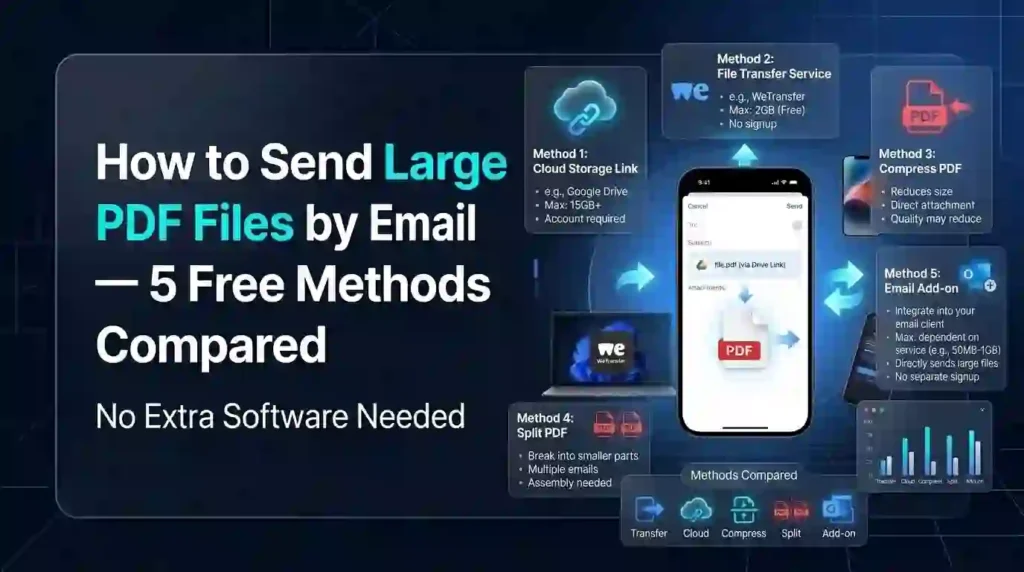
Method 2: Share via Google Drive Link
Instead of attaching the file directly, you can upload your PDF to Google Drive and share a link instead. Gmail actually does this automatically if you try attaching a file over 25MB — it prompts you to insert a Drive link instead.
How it works:
- Upload your PDF to Google Drive.
- Right-click the file and select “Get link.”
- Set sharing permissions (anyone with the link, or specific people).
- Paste the link into your email body.
Best for: Files up to 15GB (Google’s free storage limit) and recipients who need ongoing access to the file.
Limitation: Recipients need a Google account for certain sharing configurations, and the link may expire or be revoked if you delete the file later.
Method 3: Use WeTransfer (or a Free Alternative)
WeTransfer is one of the most popular tools built specifically for sending large files. It’s simple, doesn’t require an account for basic use, and works well for one-time transfers.
How it works:
- Go to WeTransfer’s website.
- Upload your PDF (free plan allows up to 2GB per transfer).
- Enter the recipient’s email address.
- They’ll receive a download link valid for 7 days.
Best for: Large, one-time transfers where you don’t need long-term storage.
Limitation: Free transfers expire after a week, and the free plan has ads and occasional upload speed limits. If you’re looking for a WeTransfer alternative, Send Anywhere and Google Drive both work similarly without the expiration window.
Method 4: Split the PDF Into Smaller Files
If your PDF has many pages — say, a 100-page report — you can split it into smaller sections and send them as separate attachments, each under the size limit.
How it works:
- Use a free PDF splitter tool to divide your document by page range.
- Save each section as a separate file.
- Attach and send them individually or across multiple emails.
Best for: Multi-chapter documents, reports, or scanned books where recipients don’t need the entire file at once.
Limitation: This method is less convenient for recipients, as they’ll need to recombine the files if they want the complete document.
Method 5: Zip the File and Compress It Further
Compressing a PDF into a ZIP file can sometimes shave off a few extra megabytes, especially if the PDF contains multiple embedded fonts or unoptimized images created without compression.
How it works:
- Right-click your PDF and select “Compress to ZIP” (Windows) or “Compress” (Mac).
- Attach the ZIP file to your email instead of the raw PDF.
Best for: Combining multiple PDFs into a single attachment while saving space.
Limitation: ZIP compression on already-compressed PDFs (such as those already run through Method 1) often yields minimal size reduction. It works best as a secondary step, not a replacement for actual PDF compression.
Comparison Table: 5 Free Methods to Send Large PDF Files
| Method | Free Limit | Ease of Use | Best For |
|---|---|---|---|
| Compress PDF | No limit (size varies by quality) | Very easy | Quick fixes, slightly oversized files |
| Google Drive Link | 15GB free storage | Easy | Ongoing access, large files |
| WeTransfer | 2GB per transfer | Easy | One-time large transfers |
| Split PDF | No limit | Moderate | Long documents, reports |
| Zip Compression | Minor size reduction | Easy | Bundling multiple files |
Which Method Should You Actually Use?
Here’s a simple way to decide:
- If your file is just slightly too large (say, 30–40 MB), compress it first. It’s the fastest fix and keeps everything within a normal email attachment.
- If your file is genuinely large (100MB+), use a cloud storage approach rather than an email attachment — Google Drive or WeTransfer will save you time and frustration.
- If you’re sending a lengthy document and the recipient only needs part of it, split the PDF into smaller files instead of forcing them to download the whole thing.
- If you’re sending multiple PDFs at once, zip them together and, ideally, compress each PDF individually beforehand for maximum size reduction.
For most everyday situations — sending a resume, a scanned form, or a small report — compression alone solves the problem in under a minute.
A Quick Note on Security
If your PDF contains sensitive information — contracts, financial data, or personal details — consider password-protecting it before sending, regardless of the method you use. Most compression tools and PDF editors let you add a password in the same step. This adds a layer of secure file sharing protection, especially important when using public links via Google Drive or WeTransfer, since links can sometimes be forwarded beyond your intended recipient.
If you’re new to using online tools for tasks like this, our beginner’s guide to Free Convertors walks through the basics, and our online tools safety guide covers how to use free web tools without compromising your data.
Sending Large PDFs on Mobile (iPhone & Android)
If you’re working from your phone, the process is nearly identical:
- iPhone: Open the PDF in Files or Mail, tap the share icon, and choose “Compress” if using a third-party app, or upload to Google Drive/WeTransfer directly from the share sheet.
- Android: Most PDF viewer apps have a built-in “Compress” or “Share via” option that connects directly to Drive, WhatsApp, or email.
Mobile browsers also support most free online PDF compressors, so you don’t necessarily need a dedicated app — just visit the tool’s website and upload directly from your phone’s file manager.
Common Reasons PDFs Become Too Large
Understanding why your PDF got so big in the first place can help you avoid the problem next time:
- Scanned documents — Scanned pages are essentially images, which take up far more space than typed text. Learn more in our guide on how PDF files are created.
- High-resolution images — Photos embedded at print quality (300 DPI or higher) dramatically increase file size.
- Embedded fonts — Custom fonts embedded directly into the PDF add extra weight.
- Multiple merged documents — Combining several files into one PDF multiplies the size accordingly, especially when done with merge multiple images to PDF tools without compression.
- Unoptimized exports — PDFs exported directly from design software (like InDesign or PowerPoint) are often unnecessarily large by default.
If you’re a recruiter or work in HR and regularly deal with resumes and CVs converted to PDF, check out our guide on how HR professionals convert CVs and resumes to PDF efficiently without bloating file sizes.
Free Online Tools vs Paid Software for PDF Compression
A common question is whether free tools are “good enough” compared to paid software like Adobe Acrobat. For most everyday use cases — emailing documents, sharing reports, submitting forms — free online PDF compressors do the job just as well, without requiring installation or a subscription.
If you’re curious about the tradeoffs, we’ve broken this down in detail in our comparison of free online tools vs paid software, and separately in browser-based tools vs desktop software, which covers speed, privacy, and convenience differences.
FAQs About Sending Large PDF Files by Email
What is the maximum PDF size you can send by email? Most providers cap attachments at 25 MB (Gmail, Yahoo) or 20 MB (Outlook). Anything larger needs to be compressed, split, or shared via a cloud storage link instead.
How do I send a PDF larger than 25MB? Compress the PDF first to try to bring it under the limit. If it’s still too large, upload it to Google Drive, Dropbox, or WeTransfer and share the download link in your email instead of attaching the file directly.
Does compressing a PDF reduce quality? Light-to-medium compression usually has little to no visible impact on quality, especially for text-based documents. Maximum compression can slightly reduce image sharpness, so it’s best for documents where visual quality isn’t critical.
Can I send a PDF through Google Drive instead of email? Yes. Upload the file to Drive, generate a shareable link, and paste that link into your email. This works for files up to 15GB on a free Google account and avoids attachment size limits entirely.
How do I reduce a PDF file size for free? Use a free online PDF compressor — upload your file, choose a compression level, and download the smaller version. No software installation or payment is required for most everyday file sizes.
Is WeTransfer free for large PDF files? Yes, WeTransfer’s free plan allows transfers up to 2GB per file, with the download link staying active for 7 days. It’s ideal for one-time sends but not for long-term file storage.
Final Thoughts
Sending a large PDF file by email doesn’t have to be a headache once you know your options. For quick fixes, compressing the PDF is almost always the fastest and simplest solution. For genuinely large files, cloud links through Google Drive or WeTransfer save time and avoid quality loss altogether. And if you’re regularly sending long documents, splitting them into smaller sections keeps things manageable for both you and your recipients.
Whichever method fits your situation, the goal is the same: get your document delivered without stress, delays, or bounced emails.
Need a quick fix right now? Try our free PDF Compressor — upload your file, choose your compression level, and download a smaller version in seconds, no sign-up required. You can also explore our full collection of free tools for PDF, image, and file conversion needs, and check our PDF email checklist to make sure your document is ready before you hit send.
For more on how email attachment limits work behind the scenes, Google’s official Gmail help documentation and Microsoft’s Outlook attachment guidelines are solid references worth bookmarking.