
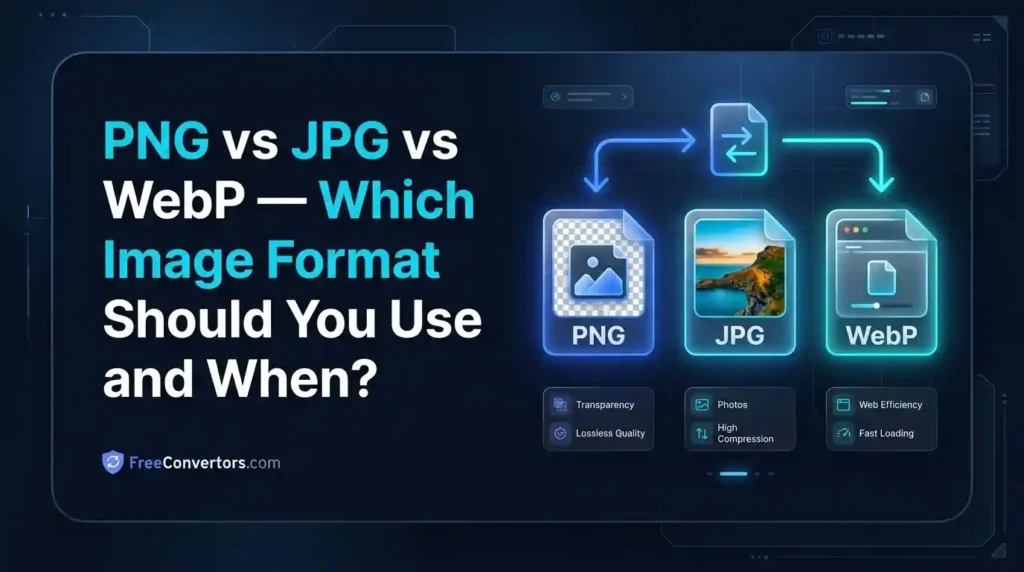
Use JPG for photographs, PNG for logos and transparent images, and WebP for websites where speed and quality both matter. WebP is Google’s recommended next-gen format that delivers smaller file sizes than both PNG and JPG without sacrificing visual quality.
Every time you save an image, upload a photo, or build a webpage, you face the same quiet question: which image format should I use? PNG? JPG? WebP? It sounds like a small technical detail, but the wrong choice can slow down your website, hurt your Google rankings, or make your logo look blurry and unprofessional.
This guide breaks down the PNG vs JPG vs WebP debate in plain English — no jargon, no confusion. By the end, you will know exactly which format to use, and when, for every situation you will ever face.
What Are Image Formats and Why Do They Matter?
An image format is essentially the “language” a file uses to store and encode pixel data. Different formats use different compression types, support different features like transparency, and produce different file sizes.
Here is why this matters for you:
- Page speed: Larger image files slow down your website, which hurts your Core Web Vitals score and your Google ranking.
- Image quality: Some formats preserve every pixel (lossless), while others throw away some data to shrink the file (lossy compression).
- Browser image support: Not every format works in every browser or platform.
- SEO impact: Google’s PageSpeed Insights actively flags images in outdated formats and recommends switching to next-gen formats like WebP and AVIF.
According to Google’s web performance guidelines, images are often the largest contributors to page weight, and optimizing them is one of the fastest wins for Largest Contentful Paint (LCP) — a critical Core Web Vitals metric.
PNG vs JPG vs WebP — Quick Comparison Table
| Feature | PNG | JPG | WebP |
|---|---|---|---|
| Compression Type | Lossless | Lossy | Both (lossless + lossy) |
| Transparency Support | ✅ Yes | ❌ No | ✅ Yes |
| Best For | Logos, icons, screenshots | Photos, social media | Websites, web apps |
| Typical File Size | Large | Medium | Smallest |
| Color Depth | Up to 48-bit | Up to 24-bit | Up to 32-bit |
| Browser Support | Universal | Universal | 95%+ modern browsers |
| Print Quality | Excellent | Good | Not ideal for print |
| Google Recommended | No | No | ✅ Yes |
What Is PNG Format?
PNG stands for Portable Network Graphics. It was created in the mid-1990s as a replacement for the older GIF format, and it uses lossless compression — meaning when you save a PNG file, absolutely no image data is thrown away. Every single pixel is preserved exactly as it was.
What makes PNG special is its alpha channel support. This means PNG images can have transparent backgrounds, which is why it is the go-to format for logos, icons, and any graphic that needs to sit cleanly on top of different background colors.
When Should You Use PNG?
- Logos and brand assets — Transparency support ensures your logo looks perfect on any background.
- Icons and UI elements — Sharp edges and text stay crisp with lossless compression.
- Screenshots — Text and interface details are pixel-perfect.
- Graphics with flat colors — Illustrations and diagrams with large areas of solid color compress well in PNG.
- Images you plan to edit further — Since no data is lost, PNG is ideal as a working format.
When Should You Avoid PNG?
PNG is not great for photographs. A high-resolution photo saved as PNG will produce a massive file — often 5x to 10x larger than the same image saved as JPG. For a photography portfolio or blog with lots of photo content, PNG will absolutely destroy your page speed score.
You can easily convert your PNG files to other formats using the free PNG to JPG Converter or the PNG to SVG Converter at Free Convertors.
What Is JPG Format?
JPG (also written as JPEG — Joint Photographic Experts Group) is the world’s most widely used image format, and for good reason. It was specifically designed for photographs, and it uses lossy compression to achieve small file sizes.
When you save a JPG, the encoder analyzes the image and discards visual information that the human eye is least likely to notice — subtle color variations in smooth gradients, for example. The result is a file that looks almost identical to the original but can be 10x smaller.
When Should You Use JPG?
- Photographs and realistic imagery — JPG shines here. A 5MB RAW photo can become a 200KB JPG with almost no visible quality loss.
- Social media posts — Most platforms (Instagram, Facebook, Twitter/X) re-compress images anyway, so JPG is perfectly fine.
- Blog post images — Hero images, featured images, and in-content photos are ideal as JPG.
- Email newsletters — Small file sizes ensure fast loading in email clients.
- E-commerce product photos — When you have hundreds of product images, JPG keeps your site lightweight.
When Should You Avoid JPG?
- Logos and text-heavy graphics — Lossy compression creates visible “artifacts” around sharp edges and text, making them look fuzzy.
- Images requiring transparency — JPG does not support alpha channels, so transparent backgrounds become white or black.
- Images you will edit repeatedly — Each time you save a JPG, it re-compresses and loses more quality (generation loss).
If you need to convert between formats, the JPG to PNG Converter at Free Convertors handles this instantly, for free, with no quality loss in the conversion process.
What Is WebP Format?
WebP is a modern image format developed by Google and released in 2010. It was specifically built to be the best image format for the web — and by most measures, it succeeds.
WebP supports both lossy and lossless compression, has full alpha channel support (transparency), and produces files that are dramatically smaller than equivalent PNG or JPG files.
Real numbers from Google’s own research:
- WebP lossy images are on average 25–34% smaller than equivalent JPG files at the same visual quality.
- WebP lossless images are on average 26% smaller than equivalent PNG files.
That is not a small difference. For a website with 50 images, switching to WebP could cut your total image payload by a third — which translates directly into faster page loads and better Core Web Vitals scores.
When Should You Use WebP?
- Any image displayed on a website or web app — This is WebP’s home turf.
- Hero images and banners — Where you need both quality and speed.
- Product images on e-commerce sites — Faster loading, better conversions.
- WordPress websites — Plugins like ShortPixel and Imagify can automatically convert and serve WebP.
- Shopify stores — Shopify now natively serves WebP where supported.
- Next.js projects — Next.js has built-in WebP optimization via its Image component.
You can convert your images to WebP instantly using the WebP to PNG Converter or the WebP to JPG Converter at Free Convertors — and switching between these formats takes just seconds.
WebP Browser Compatibility
One common question is: can all browsers open WebP images? As of 2026, WebP is supported by all major modern browsers including Chrome, Firefox, Safari (since version 14), Edge, and Opera. Global browser support sits above 95%. The only edge cases are very old browsers like Internet Explorer, which are used by fewer than 1% of web users globally.
For maximum compatibility, you can use the HTML <picture> element to serve WebP to supported browsers and fall back to JPG for older ones:
<picture>
  <source srcset="image.webp" type="image/webp">
  <img src="image.jpg" alt="Description of image">
</picture>
Does Image Format Affect SEO?
Yes — directly and significantly. Here is how image format choices impact your search rankings:
1. Page Speed and Core Web Vitals Google uses Core Web Vitals as a ranking signal. Images are typically the heaviest assets on any webpage. Using WebP instead of PNG or JPG reduces image file sizes, which improves your Largest Contentful Paint (LCP) score — one of the three Core Web Vitals metrics Google measures.
2. Google PageSpeed Insights Recommendations Run any website through Google PageSpeed Insights and one of the most common suggestions is “Serve images in next-gen formats.” This specifically refers to WebP and AVIF. Ignoring this recommendation means leaving easy performance points on the table.
3. Image Indexing All three formats (PNG, JPG, WebP) are fully indexed by Google Images. The format itself does not affect whether Google can read or rank your image — but the associated alt text, file name, and surrounding content do.
4. CLS (Cumulative Layout Shift) If images do not have defined width and height attributes in HTML, they cause layout shifts as they load — hurting your CLS score. This applies to all formats equally.
You can also compress your images before uploading using the Image Compressor tool at Free Convertors, which reduces file size without any visible quality loss.
PNG vs JPG vs WebP for Specific Use Cases
Best Image Format for Logos
Winner: PNG (or SVG)
Logos need sharp, clean edges and often require a transparent background. PNG’s lossless compression handles both of these needs perfectly. For logos that need to scale to any size without quality loss, SVG is even better — and you can use the SVG to PNG Converter to move between the two formats depending on your use case.
Best Image Format for Photographs
Winner: JPG (or WebP for web)
For printing and archiving, JPG gives you an excellent balance of quality and file size. For displaying photos on a website, WebP is the better modern choice — same visual quality, smaller file, faster load.
Best Image Format for Websites
Winner: WebP
Google explicitly recommends WebP for web content. It delivers the transparency of PNG, the file-size efficiency of JPG, and better compression than both. For any image that lives on a webpage, WebP should be your first choice in 2026.
Best Image Format for Social Media
Winner: JPG (for most platforms)
Most social media platforms re-compress uploaded images in their own format anyway, so uploading in JPG is perfectly fine. Some platforms like Twitter/X and LinkedIn handle PNG well for graphics and screenshots with text.
Best Image Format for Screenshots
Winner: PNG
Screenshots often contain text, UI elements, and sharp color transitions. PNG’s lossless compression preserves all of this perfectly. JPG would introduce visible compression artifacts around text and icons.
Best Image Format for Print
Winner: PNG or TIF/TIFF
Print workflows require high color depth and no compression artifacts. PNG handles this well for digital-to-print work. For professional print production, TIFF is the industry standard.
Lossless vs Lossy Compression — Explained Simply
This is the concept that underpins the entire image format decision:
Lossless compression means the file is compressed but all original data is preserved. When you decompress it, you get back exactly what you started with. PNG is lossless.
Lossy compression means the file is compressed by permanently discarding some data — specifically, data the algorithm decides you probably will not notice is missing. JPG is lossy.
WebP supports both. You can save a WebP file in lossless mode (comparable to PNG) or lossy mode (comparable to JPG, but more efficient).
Think of it this way: lossless is like vacuum-sealing food — it takes up less space but the food is still 100% intact. Lossy is like cooking the food first to reduce its weight — smaller, but you have changed it permanently.
Why Free Convertors Is Your Best Tool for Image Format Conversion
Whether you need to convert WebP to PNG, PNG to JPG, JPG to PDF, or any other combination, Free Convertors offers a complete suite of free, browser-based tools that require no signup, no software installation, and no technical knowledge.
Here is what you can do at Free Convertors:
- Convert WebP to PNG — Instantly convert WebP images to PNG format
- Convert WebP to JPG — Export WebP as JPEG for wider compatibility
- Convert PNG to JPG — Reduce PNG file sizes for web use
- Convert JPG to PNG — Add transparency support to your images
- Compress Images — Reduce file size without visible quality loss
- Universal Image Converter — Convert between all major image formats in one place
All tools are completely free, privacy-friendly, and work in your browser — no uploads to third-party servers, no watermarks, no limits.
Explore the full Tools Library at Free Convertors to discover everything available, from image conversion to PDF tools, currency converters, and more.
What About AVIF, HEIC, SVG, and Other Formats?
The image format world does not stop at PNG, JPG, and WebP. Here is a quick overview of other formats you may encounter:
- AVIF — A newer format that offers even better compression than WebP. Browser support is growing rapidly. Google now recommends AVIF alongside WebP for next-gen image delivery.
- SVG — A vector format, not raster. SVG scales infinitely without quality loss and is ideal for logos, icons, and illustrations. Not suitable for photographs.
- HEIC — Apple’s default format for iPhone photos. Excellent quality and small file size, but limited web browser support. Use the HEIC to JPG Converter to convert iPhone photos to web-friendly formats.
- GIF — Supports animation but has poor compression and only 256 colors. Use WebP or MP4 instead for animated content.
- TIFF — Used in professional print production and photography workflows. Very high quality, very large file sizes.
How to Convert Images to WebP Format (Step by Step)
Converting your images to WebP is easier than most people expect:
Option 1: Use Free Convertors (Easiest)
- Visit the Image Converter at Free Convertors
- Upload your PNG or JPG file
- Select WebP as the output format
- Click Convert and download your WebP file
Option 2: Use Google’s Squoosh Tool Squoosh is a free browser-based image optimizer from Google that lets you visually compare quality vs file size before downloading.
Option 3: Use a WordPress Plugin Plugins like ShortPixel, Imagify, or Smush automatically convert and serve WebP versions of your images with zero manual effort.
Option 4: Use Cloudinary or a CDN Image CDN services like Cloudinary automatically serve the right format to each browser — WebP to Chrome, AVIF where supported, JPG as a fallback.
Frequently Asked Questions
What is the difference between PNG and JPG? PNG uses lossless compression and supports transparent backgrounds, making it ideal for logos, icons, and screenshots. JPG uses lossy compression to achieve smaller file sizes, making it ideal for photographs. PNG files are significantly larger than JPG files for photographic content.
Is WebP better than PNG? For web use, yes. WebP lossless files are about 26% smaller than equivalent PNG files while maintaining identical visual quality. WebP also supports transparency, just like PNG. The main reason to still use PNG is for maximum compatibility in non-web contexts like print and older software.
Is WebP better than JPG? For websites, yes. WebP lossy files are 25–34% smaller than equivalent JPG files at the same visual quality. For print and archival purposes, JPG is still widely used and accepted.
Which image format is best for websites? WebP is the best image format for websites in 2026. It offers smaller file sizes than both PNG and JPG, supports transparency, and is recommended by Google for improving Core Web Vitals scores and PageSpeed performance.
Does image format affect SEO? Yes. Image format affects file size, which directly impacts page load speed and Core Web Vitals — both of which are Google ranking factors. Using WebP instead of PNG or JPG can meaningfully improve your PageSpeed score and LCP metric.
Can all browsers open WebP images? All modern browsers — Chrome, Firefox, Safari (14+), Edge, and Opera — support WebP. Global browser support is above 95% as of 2026. For legacy browser fallback, use the HTML <picture> element to serve JPG as a backup.
What image format does Google recommend? Google recommends WebP and AVIF as next-gen image formats for web content. Their PageSpeed Insights tool actively flags JPG and PNG images and recommends converting them to WebP or AVIF for better performance.
Conclusion — Make the Right Choice Every Time
Choosing the right image format is not complicated once you know the rules:
- Use PNG when you need transparency, sharp edges, or lossless quality — logos, icons, and screenshots.
- Use JPG when you are working with photographs for print, email, or social media.
- Use WebP for everything that lives on a website — it is smaller, faster, and Google-approved.
The good news is that switching between formats has never been easier. Whether you need to convert a WebP file to PNG, compress a batch of JPG images, or turn a PNG logo into an SVG, Free Convertors has every tool you need — completely free, with no registration required.
👉 Start converting your images today at Free Convertors and explore the full suite of advanced image tools at freeconvertors.com/tools/.
The difference between a slow website and a fast one often comes down to image optimization. Now you have everything you need to make the right call every time.
Pingback: Best Free Developer Tools Every Web Developer Needs
Pingback: How to Optimize Images for Instagram, Facebook & Twitter
Pingback: Make Images Smaller for WhatsApp Without Losing Quality
Pingback: How to Compress Website Images for Faster Loading