Ever sent a photo on WhatsApp only to have it come out blurry, pixelated, or oddly compressed on the other end? You’re not alone. WhatsApp automatically compresses every image you send, and if you don’t prepare your photo correctly first, that compression can wreck your image quality. The good news: with the right file size, resolution, and sending method, you can make images smaller for WhatsApp without losing quality at all. This guide shows you exactly how.
Why WhatsApp Compresses Your Images
WhatsApp compresses images to save data and speed up delivery, especially for users on slower mobile connections. When you send a photo as a “Photo” (not a document), WhatsApp automatically resizes and compresses it — often down to a fraction of the original file size.
This is efficient for WhatsApp’s servers, but it comes at a cost: fine detail, sharp edges, and color depth can all take a hit, especially with images that already have high contrast or lots of text.
Understanding this compression behavior is the first step to working around it. Once you know how WhatsApp treats images, you can prepare your file in a way that survives the compression process with minimal visible quality loss.
WhatsApp Image Size Limit: What You Need to Know
- Sending as Photo: WhatsApp compresses images to roughly 100 KB–1 MB depending on original resolution, and resizes long-edge dimensions down to around 1600 px.
- Sending as Document: WhatsApp allows files up to 2 GB and does not compress them — the image arrives exactly as you sent it.
- Profile Picture (DP): WhatsApp displays profile photos at roughly 640 x 640 px, cropped to a circle.
- Status Photos: Compressed similarly to regular photo messages, generally capped around 1080 px on the long edge.
Knowing these limits helps you decide the best strategy for each type of image you’re sending — a casual snapshot doesn’t need the same treatment as a professional photo or a scanned document.
Comparison Table: Best Methods to Send Images on WhatsApp
| Method | File Size After Sending | Quality Result | Best For |
|---|---|---|---|
| Send as Photo (default) | Compressed to ~100 KB–1 MB | Moderate quality loss | Everyday casual photos |
| Send as Document | Original size preserved | No quality loss | Professional or detailed images |
| Pre-Compress Then Send as Photo | Small file, good quality | Minimal quality loss | Photos you want fast + sharp |
| WhatsApp HD Quality Setting | Slightly larger than default | Better quality, still compressed | General use with better clarity |
How to Make Images Smaller for WhatsApp Without Losing Quality (Step-by-Step)
Step 1: Resize the Image Before Sending
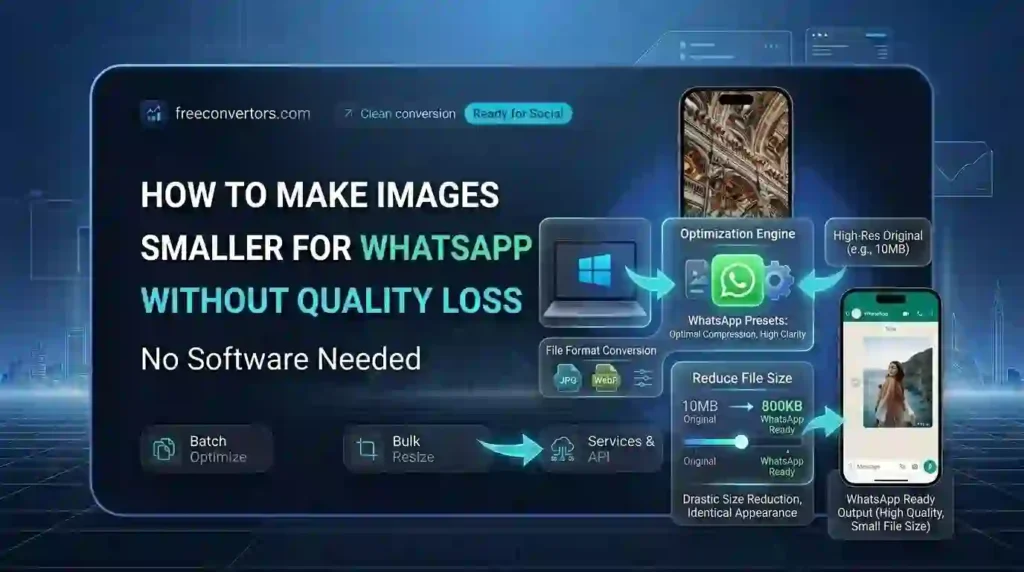
Rather than letting WhatsApp resize your photo unpredictably, resize it yourself first. Keeping the long edge around 1600 px is ideal — large enough to look sharp, small enough that WhatsApp’s compression has little extra work to do. A free image compressor tool lets you control the output size directly instead of leaving it to chance.
Step 2: Compress the File Before Uploading
Pre-compressing your image to a smaller file size (for example, under 500 KB) means WhatsApp’s own compression algorithm barely touches it, since there’s little left to strip out. This is the single most effective trick for making images smaller for WhatsApp without visible quality loss.
Step 3: Choose the Right Format
JPEG is generally the best format for WhatsApp photos — it compresses efficiently while keeping good visual quality. If your original image is in HEIC format (common on iPhones), convert it to JPEG first using a HEIC to JPG converter, since HEIC files sent directly can sometimes cause compatibility or extra compression issues on non-Apple devices.
Step 4: Send as a Document for Zero Compression
If quality matters more than convenience — for example, sending a portfolio photo, a certificate, or a detailed product image — attach it as a document instead of a photo. WhatsApp does not compress documents, so the recipient receives the exact file you sent, pixel for pixel.
Step 5: Turn On WhatsApp’s HD Photo Setting
Recent versions of WhatsApp include an HD quality toggle that appears when you select an image to send. Tapping “HD” before hitting send increases the resolution WhatsApp preserves, giving you noticeably sharper results than the default setting — while still keeping the file smaller than sending as a raw document.
Step 6: Reduce Resolution Without Reducing Detail
If your image is unusually large (say, from a modern smartphone camera at 12+ megapixels), reducing resolution to something more reasonable — like 1600 x 1200 px — removes unnecessary pixel data without a visible drop in sharpness on a phone screen. This keeps file size down while quality stays intact to the human eye.
Step 7: Compress in Bulk for Multiple Images
If you’re sending several photos at once — for an event, a product catalog, or a group chat — compress them all beforehand rather than sending each one individually. Batch compression keeps quality consistent across every image and avoids WhatsApp compressing each one differently based on network conditions at the time.
Best Free Tools to Compress Images for WhatsApp
You don’t need paid software to prep images properly. These free tools cover the entire process:
- Image Compressor – reduce file size while preserving visible quality: image-compressor
- Image Converter – switch between JPEG, PNG, WebP, and more: image-converter
- HEIC to JPG Converter – convert iPhone photos to a WhatsApp-friendly format: heic-to-jpg-converter
- PNG to JPG Converter – shrink graphic files before sending: png-to-jpg-converter
- JPG to PNG Converter – useful when you need to preserve transparency in an image: jpg-to-png
- WebP to JPG Converter – convert modern web images before sharing on WhatsApp: webp-to-jpg-converter
If you regularly compress images for messaging apps and social platforms, this guide on how compressing images improves speed, storage, and SEO explains the technical side of why smaller files perform better everywhere — not just on WhatsApp.
WhatsApp DP (Profile Picture) Optimization Tips
Your WhatsApp display picture gets cropped into a circle and shown at a small size, so a few extra considerations apply:
- Center your subject, since WhatsApp crops from the edges inward.
- Use a square image (1:1 ratio) around 640 x 640 px so nothing important gets cut off.
- Compress the file before uploading — a DP doesn’t need to be more than 200–300 KB to look sharp at the small display size WhatsApp uses.
- Avoid busy backgrounds or small text, since fine detail gets lost once compressed and displayed at profile-picture size.
WhatsApp Status Photo Optimization Tips
Status photos behave differently from regular chat photos since they’re shown full-screen briefly. For the sharpest results:
- Use a 9:16 aspect ratio (1080 x 1920 px), matching most phone screens.
- Pre-compress to keep file size reasonable while resolution stays high.
- Avoid uploading raw, uncompressed camera files — WhatsApp will compress them anyway, often unevenly.
Common Mistakes That Cause Quality Loss on WhatsApp
- Sending unedited camera-original files. These are often 4–8 MB or larger, forcing WhatsApp’s compression to work hard and strip detail aggressively.
- Re-sending an already-compressed image. Every round of compression degrades quality further — always start from your best-quality source file.
- Ignoring the HD toggle. Many users don’t notice this setting exists, missing an easy quality boost at no extra effort.
- Using PNG for photos. PNG files are much larger than JPEG for photographic images and don’t offer a real quality benefit for casual photo sharing.
- Sending oversized images as regular photos. A 12 MP+ image sent as a “Photo” gets aggressively downsized by WhatsApp — pre-resizing yourself gives you more control over the final result.
Photo vs Document: Which Should You Use?
This is one of the most common points of confusion, so here’s the simple rule: if the image needs to preserve every detail — a scanned document, a certificate, a detailed graphic, or professional photography — send it as a document. If it’s a casual photo where WhatsApp’s default compression won’t matter much, sending it as a regular photo is fine and faster to view.
For a deeper look at compression tradeoffs across different file types, this comparison of PNG vs JPG vs WebP for choosing the best image format explains how format choice affects both file size and visual quality — the same principles apply whether you’re sending on WhatsApp, email, or social media.
Why Choose Free Convertors for WhatsApp Image Compression
Free Convertors gives you every tool needed to prep images for WhatsApp — compression, resizing, and format conversion — all in one place, with no watermarks, sign-ups, or software installs required. Whether you’re shrinking a single DP or batch-compressing photos before a big group send, you can explore advanced tools at Free Convertors and get WhatsApp-ready images in seconds. If you also send images by email, this related guide on how to compress an image for email covers similar size limits worth knowing.
Frequently Asked Questions
What is the maximum image size WhatsApp allows? WhatsApp compresses photos automatically to roughly 100 KB–1 MB when sent normally, but if you send an image as a document instead, files up to 2 GB are allowed with no compression applied.
Why does WhatsApp compress photos automatically? WhatsApp compresses images to reduce data usage and speed up delivery, especially for users on slower or limited mobile data connections — this happens automatically whenever you send a photo through the standard photo-sharing option.
How do I send a photo on WhatsApp without losing quality? The most reliable method is to send the image as a document rather than a photo, since WhatsApp does not compress documents. Alternatively, pre-compress the image yourself and enable the HD quality setting before sending as a photo.
What is the best format for sending images on WhatsApp? JPEG is generally best for photos since it compresses efficiently while keeping good visual quality. PNG is only necessary for graphics that require a transparent background.
How can I reduce image size without reducing quality? Use a compression tool that reduces file size while preserving resolution and detail, rather than simply lowering the image’s dimensions. Compressing an already-compressed image repeatedly should be avoided, since quality loss compounds each time.
Does WhatsApp reduce photo resolution when sending as a photo vs document? Yes. Sending as a photo triggers WhatsApp’s automatic compression and resizing, while sending as a document preserves the original resolution and file size completely.
What size should a WhatsApp profile picture be? A square image around 640 x 640 px works best, since WhatsApp displays profile pictures cropped into a circle at a relatively small size.
Can I turn off WhatsApp’s automatic image compression? Not directly for photos sent through the standard photo-sharing option, but selecting “HD” before sending improves quality, and sending the image as a document bypasses compression entirely.
Final Thoughts
Making images smaller for WhatsApp without losing quality comes down to a few simple habits: resize and compress your photo before sending, choose the right format, and use document mode when quality really matters. Once you build these steps into your routine, every photo, status, and profile picture you send will look sharp — without eating up your recipient’s data or storage.
Ready to try it yourself? Compress and resize your images for free at Free Convertors and get every photo WhatsApp-ready in seconds.
For further reading on how image compression affects mobile data usage and web performance, see Google’s official guidance on optimizing images for web performance.