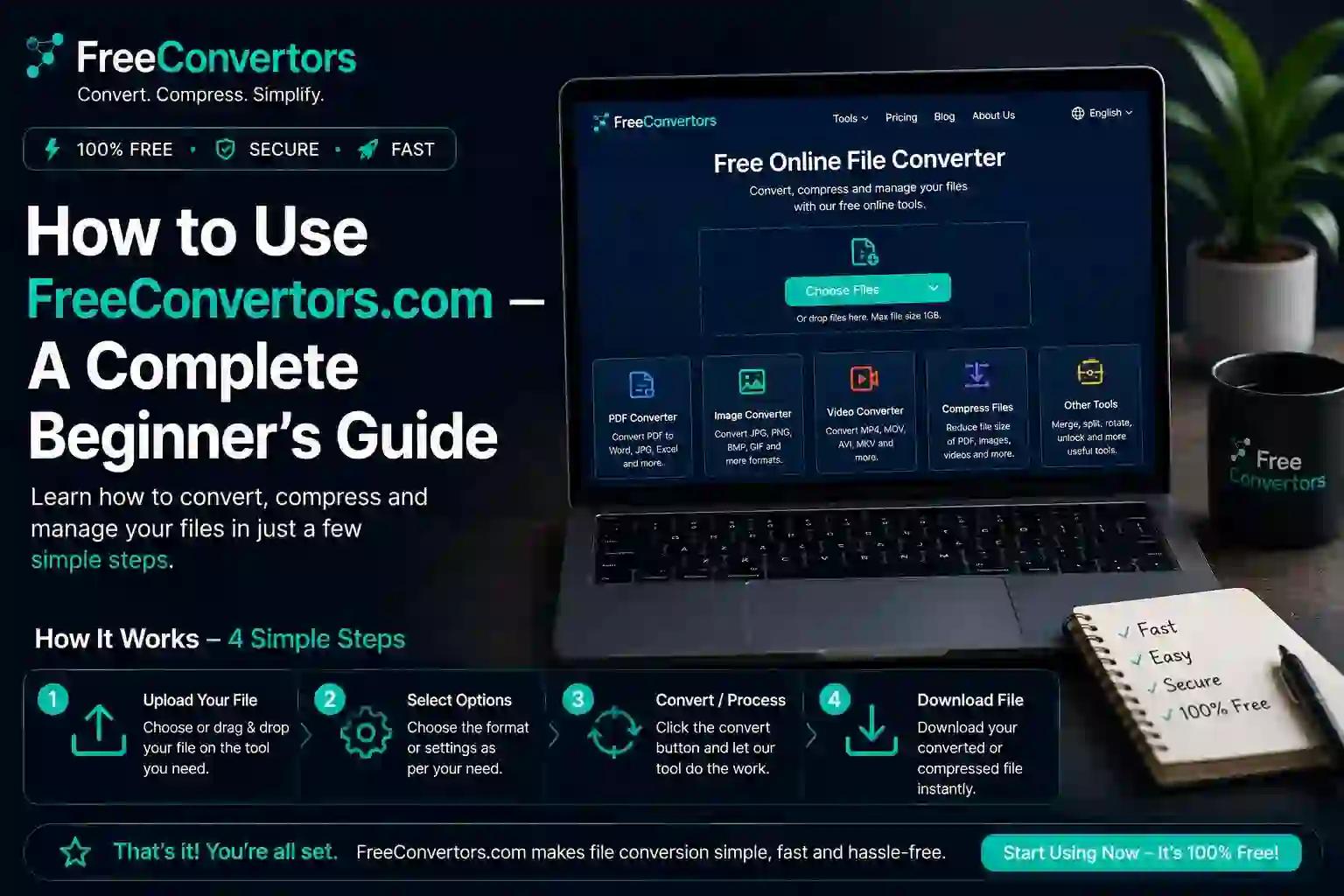
How to Use FreeConvertors.com — A Complete Beginner's Guide
Converting files shouldn't feel like a technical chore. Whether you need to turn a PDF into an editable Word document, shrink an image for WhatsApp, or convert a stubborn HEIC photo into a JPG your Windows laptop can actually open, most people just want a fast, free, and safe way to get it done. That's exactly the gap FreeConvertors.com fills.
This guide walks you through what FreeConvertors.com is, why it's become a go-to tool for students, freelancers, HR teams, and content creators, and — most importantly — exactly how to use it, step by step, even if you've never used an online converter before. By the end, you'll know how to convert, compress, and manage files confidently, without downloading any software.
What Is FreeConvertors.com?
FreeConvertors.com is a free, browser-based file conversion platform that lets you convert, compress, and transform documents, images, and data files without installing any software. It works directly in your browser on any device — Windows, Mac, Android, or iOS — and covers everything from PDF and Word conversions to image formats, currency values, time zones, and structured data like JSON and XML.
Unlike traditional desktop converters that require downloads, licenses, or storage space, FreeConvertors.com runs entirely online. You upload a file, choose your output format, and download the result in seconds. It's built for people who need quick, reliable conversions without the learning curve of professional software like Adobe Acrobat or CorelDRAW.
You can explore the complete list of available tools on the FreeConvertors.com tools page, which is organized by category for easy browsing.
Why FreeConvertors.com Matters in 2026
File conversion used to mean installing bulky software, dealing with trial limitations, or paying for subscriptions you'd use twice a year. That's changed. As more work moves to browsers, Chromebooks, and mobile devices, lightweight, no-install tools have become essential rather than optional.
A few reasons this shift matters:
- Remote work and hybrid teams need to share files in universally compatible formats (like PDF) instantly, often from devices that don't have Microsoft Office or Adobe installed.
- Content creators and marketers constantly resize, compress, and reformat images for platforms like Instagram, WhatsApp, and websites — tasks covered in detail in this breakdown of optimizing images for Instagram, Facebook, and Twitter.
- Students and job seekers frequently need to convert Word documents to PDF (or the reverse) for applications, assignments, and resumes.
- Developers regularly move data between JSON, XML, and CSV formats when building or testing applications.
For a broader look at why browser-based tools have overtaken desktop software for most everyday tasks, see this comparison of browser-based tools vs. desktop software.
Key Features and Tools on FreeConvertors.com
FreeConvertors.com isn't a single-purpose tool — it's a suite of converters built around real, everyday needs. Here's what you'll find:
Document Conversion Tools
- PDF to Word Converter — turn locked PDFs into editable Word files
- Word to PDF Converter— the reverse process, ideal for finalizing documents
- PDF Compressor— shrink large PDFs for email attachments
Image Conversion Tools
- PDF to JPG Converter
- JPG to PDF
- PNG to JPG Converter
- JPG to PNG
- HEIC to JPG Converter— essential for iPhone users sharing photos with Android or Windows users
- WebP to PNG ConverterandWebP to JPG Converter
- SVG to PNG Converter and PNG to SVG Converter
- Image Compressor and general Image Converter
Data and Utility Tools
- JSON to XML Converter
- Unit Converter
- Time Converter
- Date Calculator
- Currency Converter
- YouTube Thumbnail Downloader
This range is what separates FreeConvertors.com from single-purpose converters — you don't need five different websites bookmarked for five different file types.
How to Use FreeConvertors.com — Step by Step
Here's the exact process for converting any file on the platform. The steps are nearly identical across all tools, so once you learn one, you know them all.
Step 1: Go to the homepage or the specific tool Visit freeconvertors.com and either search for the tool you need or browse the full tools directory.
Step 2: Upload your file Click the upload button or drag and drop your file directly into the browser window. Most tools accept files up to a set size limit, and there's no need to create an account first.
Step 3: Choose your output settings Depending on the tool, you may be able to select output quality, compression level, or target format. For example, the Image Compressorlets you control file size before downloading.
Step 4: Start the conversion Click "Convert" (or the equivalent action button). Most conversions finish in seconds, though larger files or batch uploads may take slightly longer.
Step 5: Download your converted file Once processing is complete, a download link appears. Click it to save the converted file directly to your device — no email sign-up, no waiting period.
Step 6: Repeat or convert another file Since everything runs in-browser, you can immediately start another conversion without refreshing or reconfiguring anything.
Real-World Examples of How People Use FreeConvertors.com
Practical use cases make this easier to picture:
- HR teams processing dozens of applications often need to standardize resumes into PDF format for archiving. This guide on how HR professionals convert CVs and resumes to PDFshows exactly why this matters for consistency and applicant tracking systems.
- Small business owners dealing with international clients use the currency converter to quickly check exchange rates — covered further incurrency converter tools for small business.
- Remote teams coordinating across time zones use the time converter, as explained in how to convert time zones online free and time zone differences between Pakistan, UAE, UK, and USA.
- Content creators compressing images before uploading to a blog or portfolio can reference compressing images for speed, storage, and SEO.
- Anyone emailing a large PDF that keeps bouncing back due to attachment size limits can follow this PDF email checklist alongside the reduce PDF file size tool.
- Developers working with APIs often need to reshape data — thedata conversion guide for JSON, XML, and CSVbreaks this down clearly.
FreeConvertors.com vs. Other Converters
A common question beginners ask is how FreeConvertors.com compares to alternatives like desktop software or other online converters. A few key differentiators:
- No installation required — everything runs in-browser, unlike desktop tools such as Adobe Acrobat Pro or CorelDRAW.
- No forced sign-up for basic conversions, which many competing platforms require.
- Wide format coverage in one place — documents, images, data, currency, and time — rather than needing separate specialized websites.
- Free access to core tools, compared to converters that lock essential features like batch conversion or large file sizes behind a paywall.
For a deeper breakdown of when free online tools make more sense than paid desktop software, readfree online tools vs. paid software. And if you want a snapshot of what's currently available across the platform, check out free online tools in 2026.
Is FreeConvertors.com Safe to Use?
Safety is a fair concern with any file-upload tool. Reputable browser-based converters process files temporarily and don't retain them long-term, but it's always good practice to:
- Avoid uploading files containing highly sensitive personal data (like ID scans) to any third-party converter unless the platform explicitly states its data-retention policy.
- Use strong, updated browsers to ensure secure (HTTPS) connections during upload and download.
- Clear downloaded files from shared or public computers after use.
For general guidance on web file safety standards, resources like Wikipedia's overview of file formats are a useful reference point for understanding how different formats handle data structurally.
Choosing the Right Format: A Quick Primer
Not sure which format you actually need? Here's a simple breakdown:
- PDF — best for sharing final, non-editable documents (resumes, contracts, invoices)
- DOCX (Word) — best when the recipient needs to edit the content
- JPG — best for photos and web images where smaller file size matters more than transparency
- PNG — best for graphics, logos, or images needing a transparent background
- WebP — best for websites, offering smaller sizes than JPG/PNG with similar quality — compared in detail inPNG vs JPG vs WebP: best image format
- SVG — best for logos and icons that need to scale without losing quality, explained in SVG vs PNG for logos and icons
- HEIC — Apple's default photo format, which often needs converting to JPG for compatibility outside iOS, as covered in viewing HEIC photos on PC and Android
Tips for Getting the Best Results
- Compress before you convert if your final goal is a smaller file — this preserves more control over quality than compressing after conversion.
- Batch similar files together rather than converting one at a time, when the tool supports it, to save time.
- Check output quality immediately after downloading, especially for images, since compression settings affect sharpness.
- Use the right tool for the right platform — for example, WhatsApp and email have different size limits, covered specifically in making images smaller for WhatsApp.
- Merge before you convert when working with multiple images that need to become one PDF — see how to merge multiple images to PDF for free.
Who Should Be Using FreeConvertors.com
This platform is especially useful for:
- Students converting assignments between Word and PDF
- Freelancers and creators preparing images for social platforms, detailed in free tools for content creators
- Developers and IT professionals bookmarking utility tools, as covered in developer tools: free online bookmarks for 2026
- Small business owners handling invoices, currency conversions, and client documents
- Anyone who just needs a quick, one-time conversion without installing new software
Frequently Asked Questions
What is FreeConvertors.com used for? FreeConvertors.com is used to convert, compress, and transform files — including PDFs, Word documents, images, and data formats like JSON and XML — directly in your web browser, without installing software.
Is FreeConvertors.com free? Yes. Core conversion tools on FreeConvertors.com are free to use, with no mandatory sign-up for basic conversions.
Is FreeConvertors.com safe to use? Yes, for typical everyday files. As with any online upload tool, avoid uploading highly sensitive personal documents and always use a secure, updated browser connection.
Do I need to create an account to use FreeConvertors.com? No. Most tools on FreeConvertors.com work without registration — you upload, convert, and download immediately.
What file formats does FreeConvertors.com support? FreeConvertors.com supports a wide range of formats, including PDF, DOCX, JPG, PNG, WebP, SVG, HEIC, JSON, and XML, along with utility conversions like currency, time zones, and units.
Can I use FreeConvertors.com on my phone? Yes. Since it's browser-based, FreeConvertors.com works on Android, iOS, Windows, and Mac devices without needing a dedicated app.
Final Thoughts
FreeConvertors.com strips away the friction that usually comes with file conversion — no installs, no confusing settings, no paywalls for basic tasks. Whether you're compressing a resume PDF, converting a batch of product photos, or checking a currency exchange rate before a client call, the process is the same: upload, convert, download.
If you haven't tried it yet, start with a tool you'll actually use this week — maybe the PDF to Word converteror the image compressor — and see how much time it saves. For questions or platform-specific help, you can always reach out through the FreeConvertors.com contact page, or learn more about the team behind it on theAbout page.